Onboarding
After installation, Smart Panel needs an admin account before you can start managing devices. The onboarding process creates your first user and walks you through initial setup.
Admin Interface Onboarding (Recommended)
The easiest way to onboard — open the admin UI in your browser and follow the guided wizard.
Open the Admin Interface
Navigate to your Smart Panel in a browser:
http://smart-panel.local:3000Or use the device’s IP address: http://<device-ip>:3000
You can find the IP address by running hostname -I on the device.
Welcome Screen
On first visit, the onboarding wizard appears automatically.
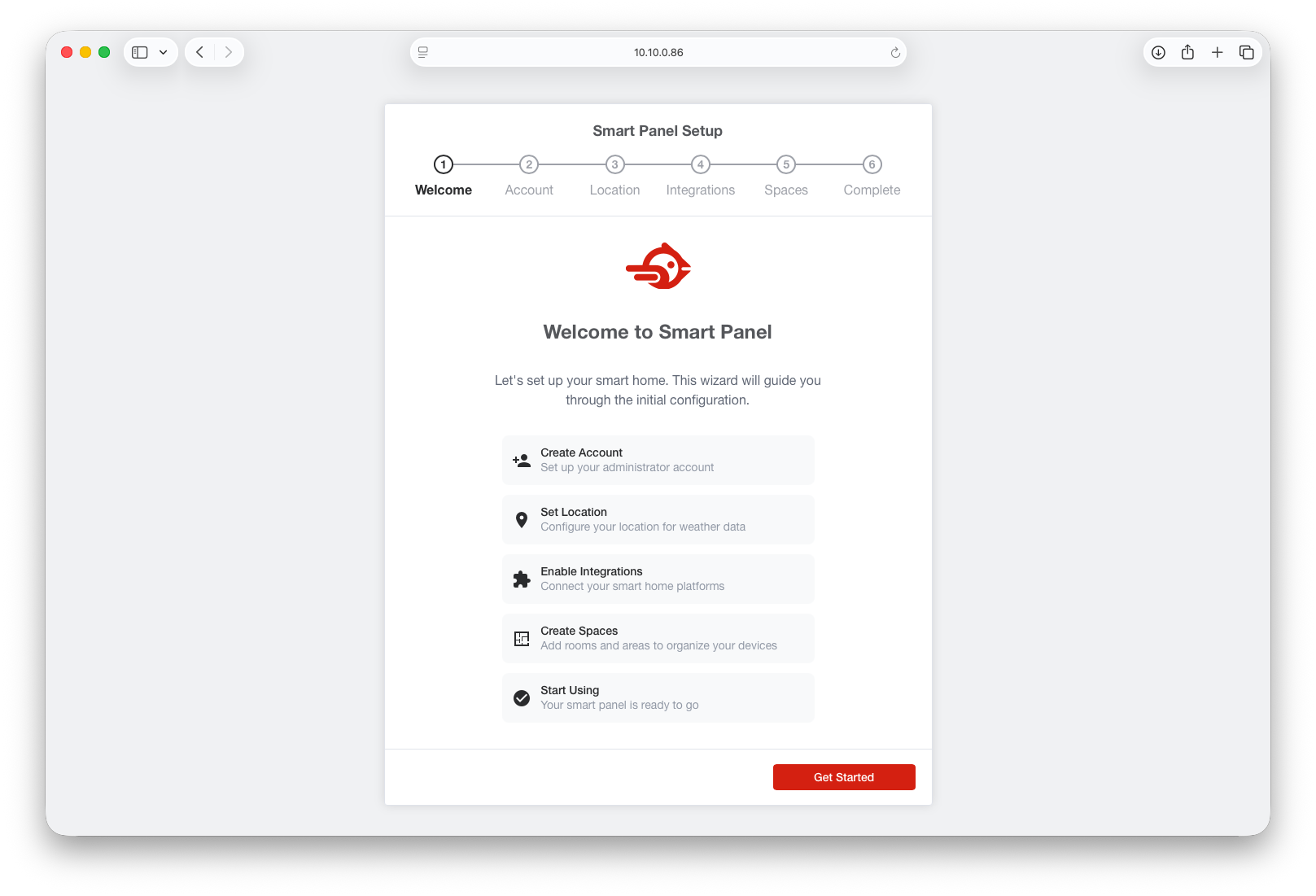
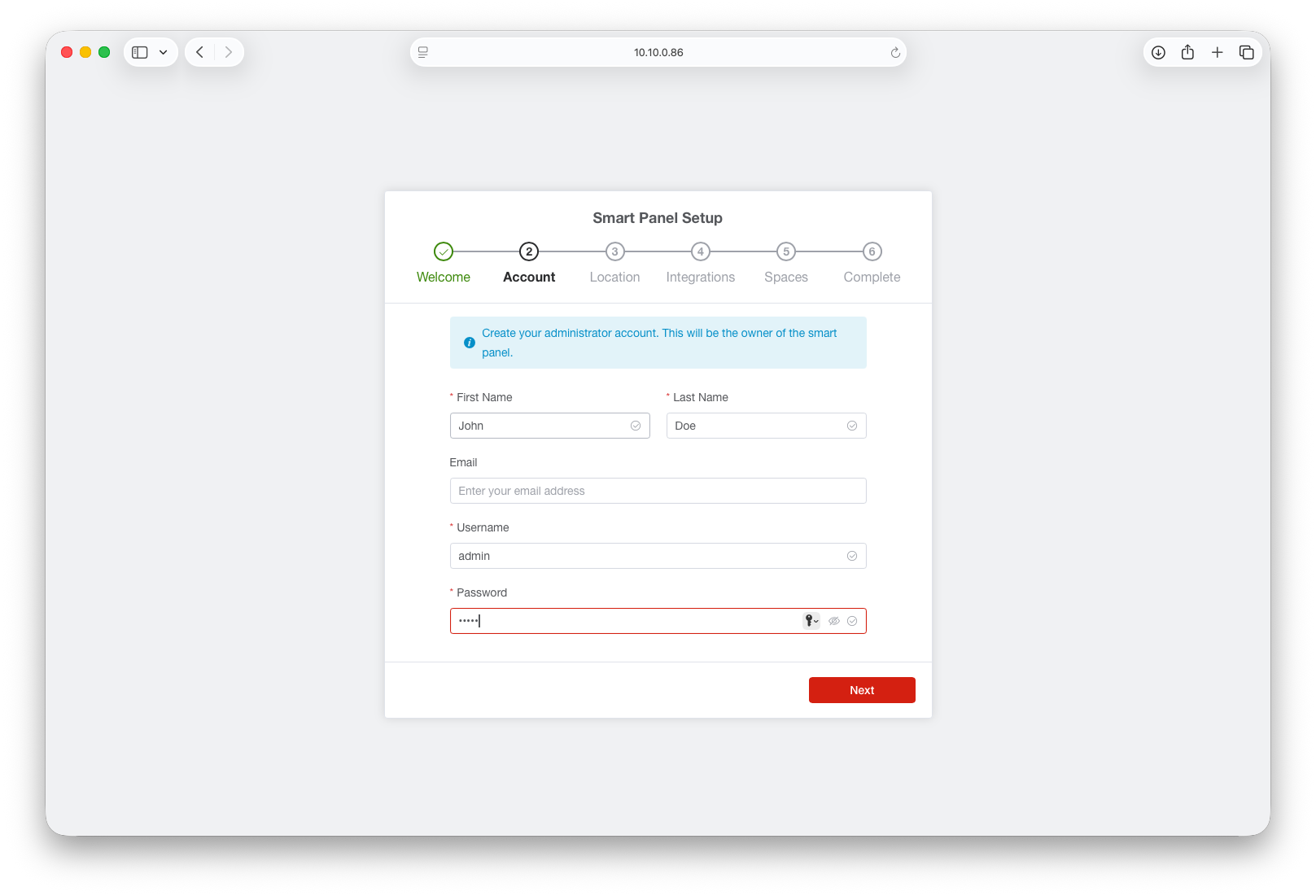
Create Your Admin Account
Enter your admin credentials:
- Username — your admin login name
- Password — a secure password (minimum 8 characters)
- Email — for account recovery (optional)
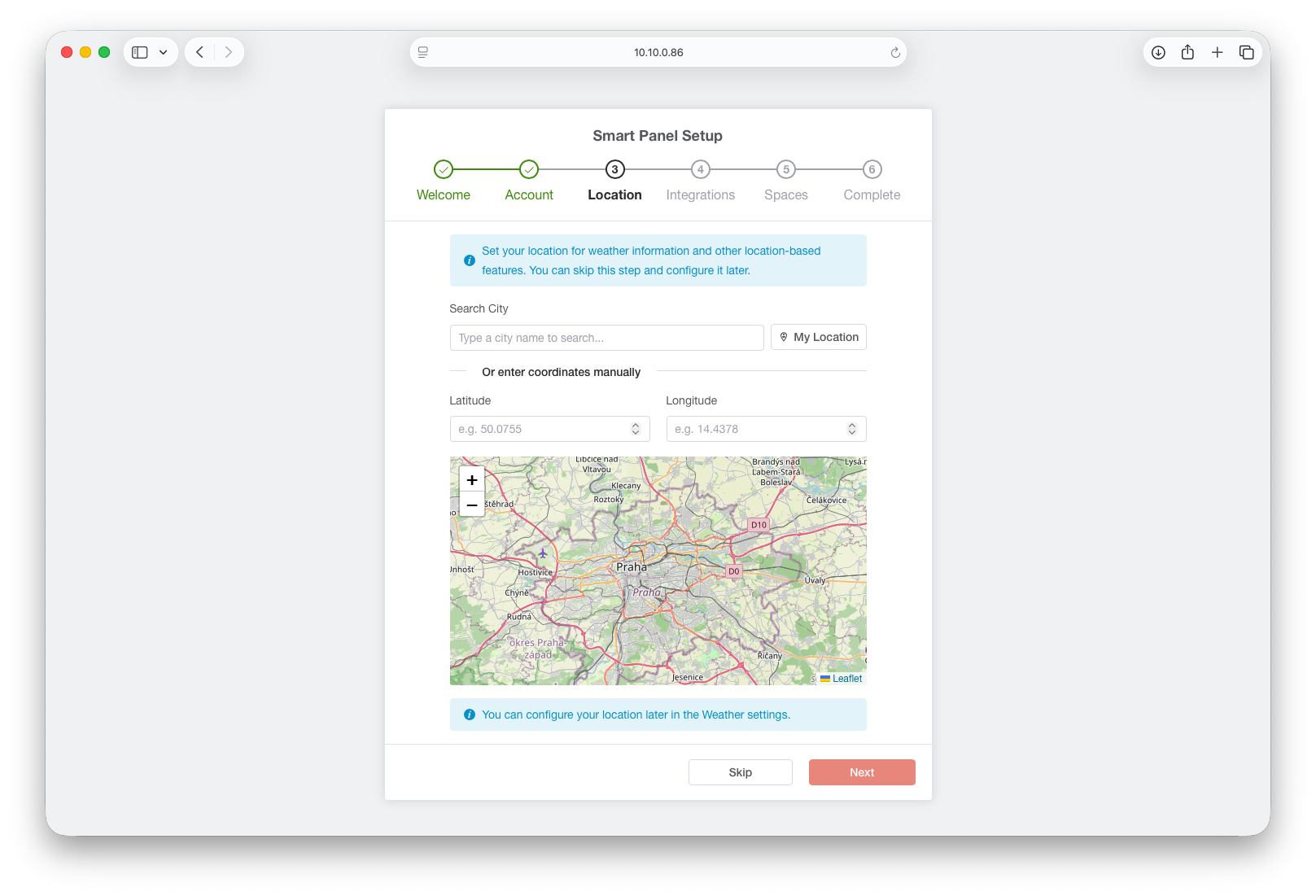
Set Your Location
Configure your location for weather and timezone settings.
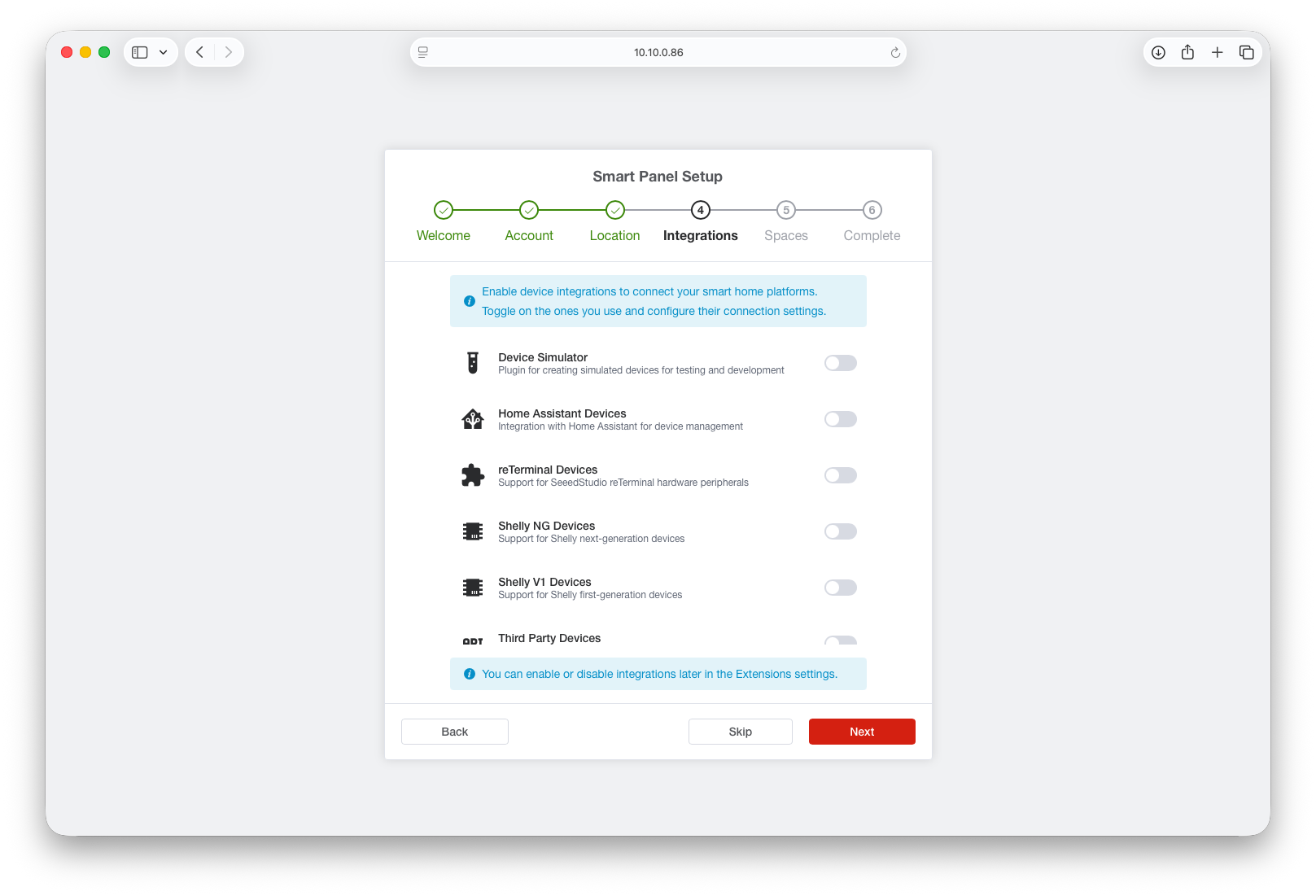
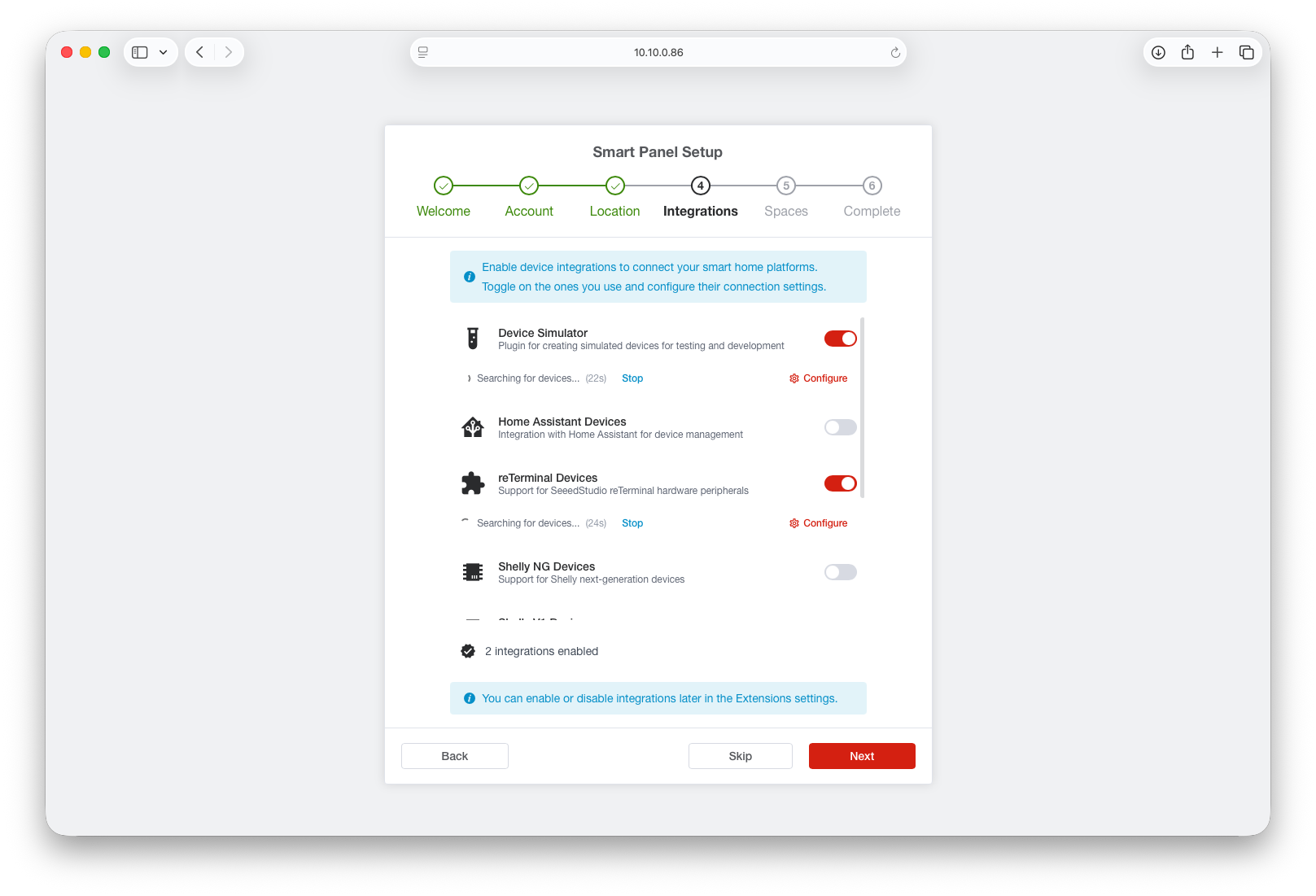
Choose Integrations
Connect your smart home platforms (Home Assistant, Shelly, Zigbee2MQTT, etc.)
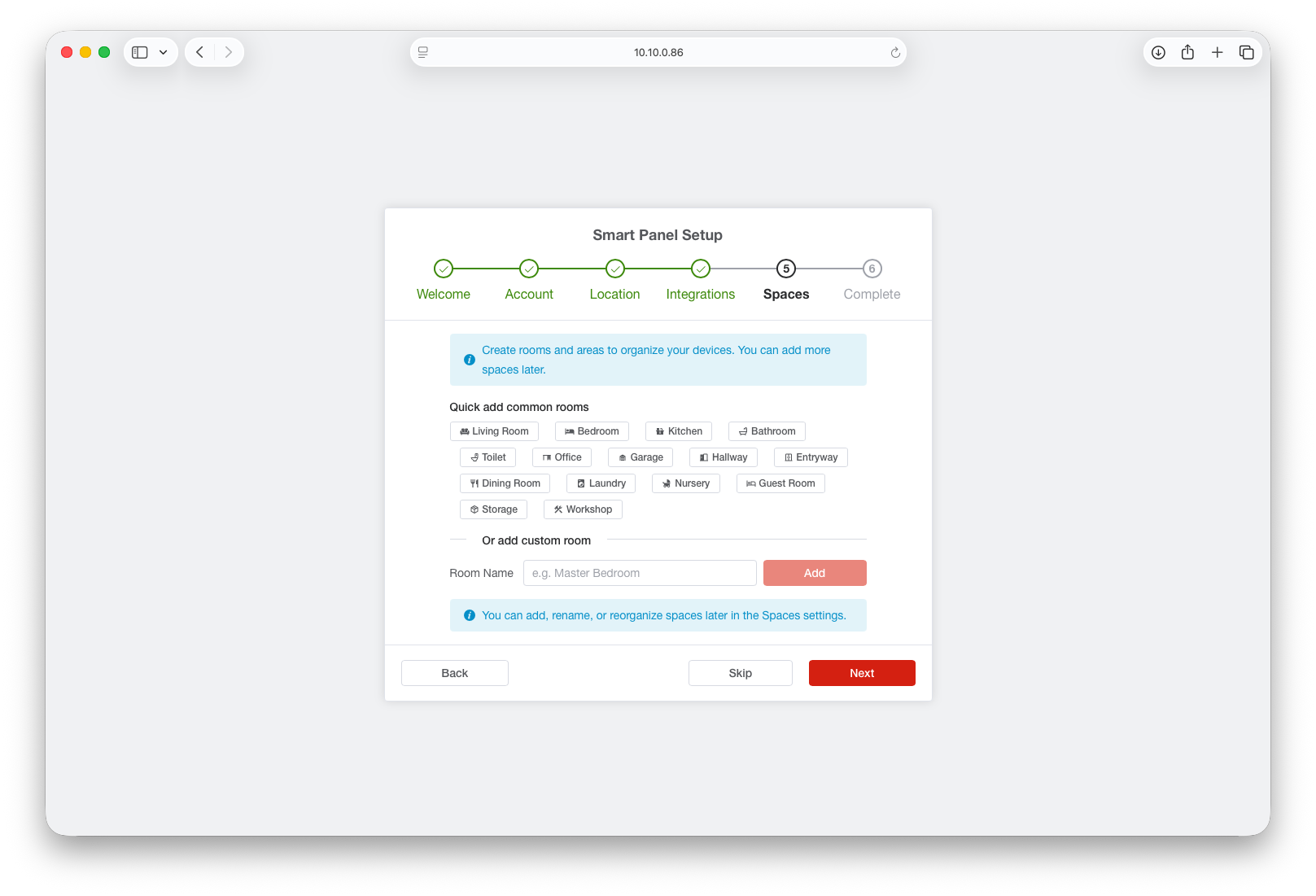
Organize Spaces
Create rooms and areas to organize your devices.
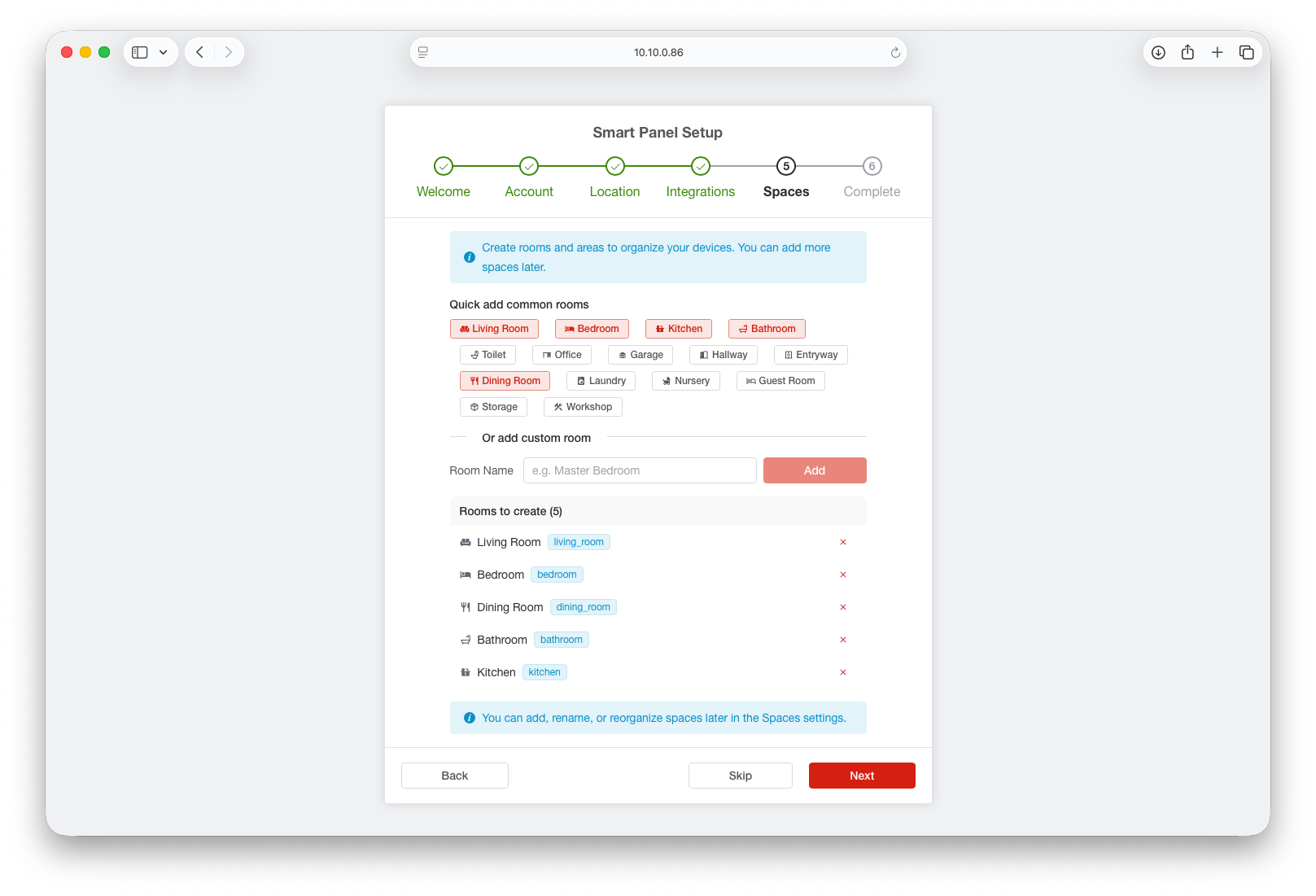
You can skip any step and configure it later from the admin interface.
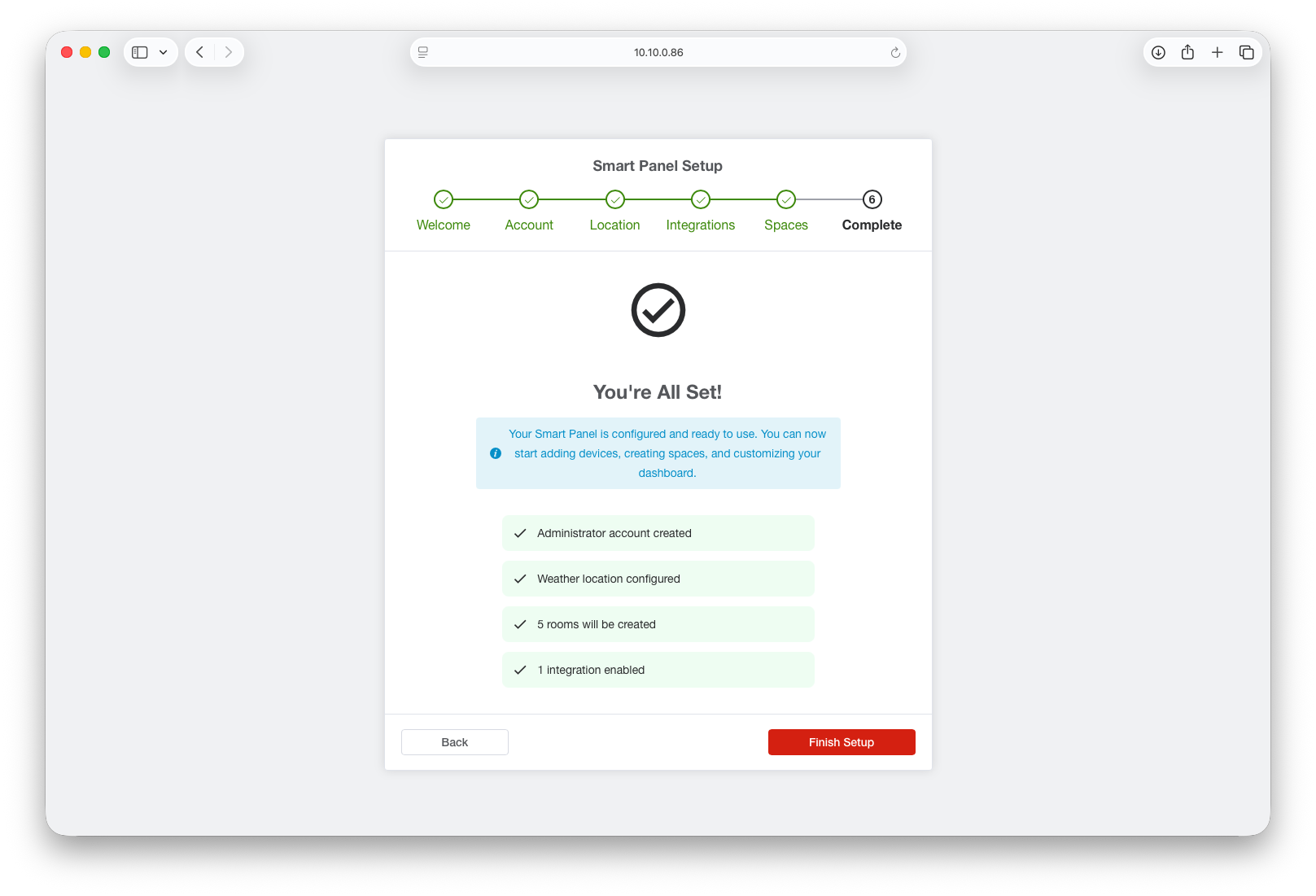
Done
After onboarding, you’re taken to the admin dashboard where you can manage devices, create scenes, customize displays, and more.
CLI Onboarding (Alternative)
If you prefer the command line, or need to create the admin account before accessing the web interface:
Install Script / npm
sudo smart-panel-service onboarding yourusername yourpasswordReplace yourusername and yourpassword with your actual credentials. Use a strong password.
After creating the account, open the admin interface to continue setup.
Display Pairing
The panel display app connects to the backend automatically:
- Pre-built images (AIO) — the display is already paired with the local backend
- Separate display devices — on first launch, the display discovers the server via mDNS or prompts you to enter the server URL manually
No manual pairing steps are required — the display fetches its configuration from the backend and starts showing the dashboard.
What’s Next?
Your Smart Panel is ready. Head over to Admin & Management to start adding devices, creating scenes, and customizing your dashboard.