Pages
Pages let you design the Smart Panel display layout — organize your devices into different views, add tiles for quick control, and tailor the interface to your needs.
How It Works
Pages use a simple hierarchy:
- Pages — top-level containers that define different views on your display
- Tiles — visual blocks within pages that show device data or allow interaction
- Data sources — connections between tiles and device properties
Pages appear as swipeable screens on the panel display. Each page contains tiles arranged in a grid layout.
Pages Overview
Navigate to Pages in the admin sidebar to see all configured pages.
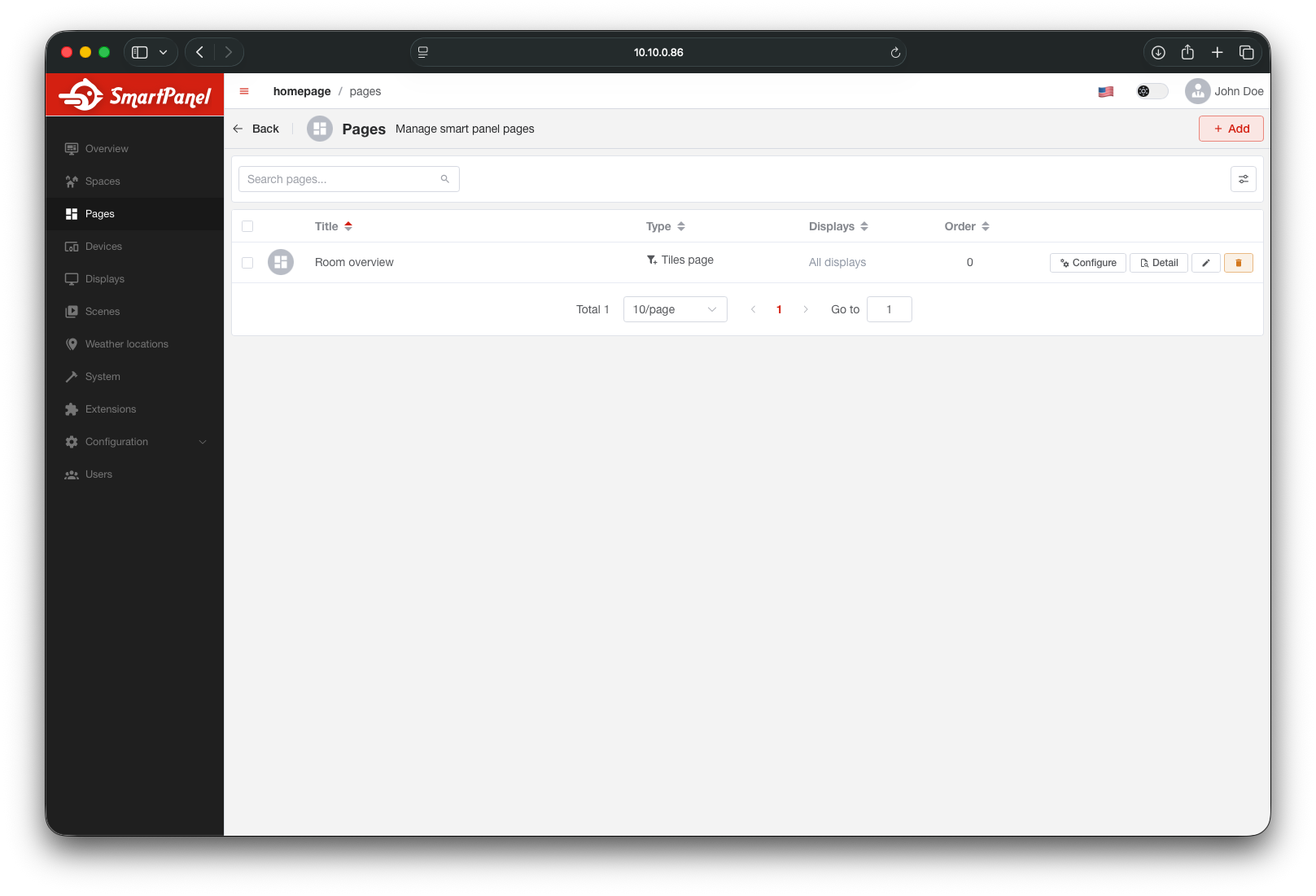
Adding a Page
Click + Add Page
In the Pages section, click the add button to create a new page.
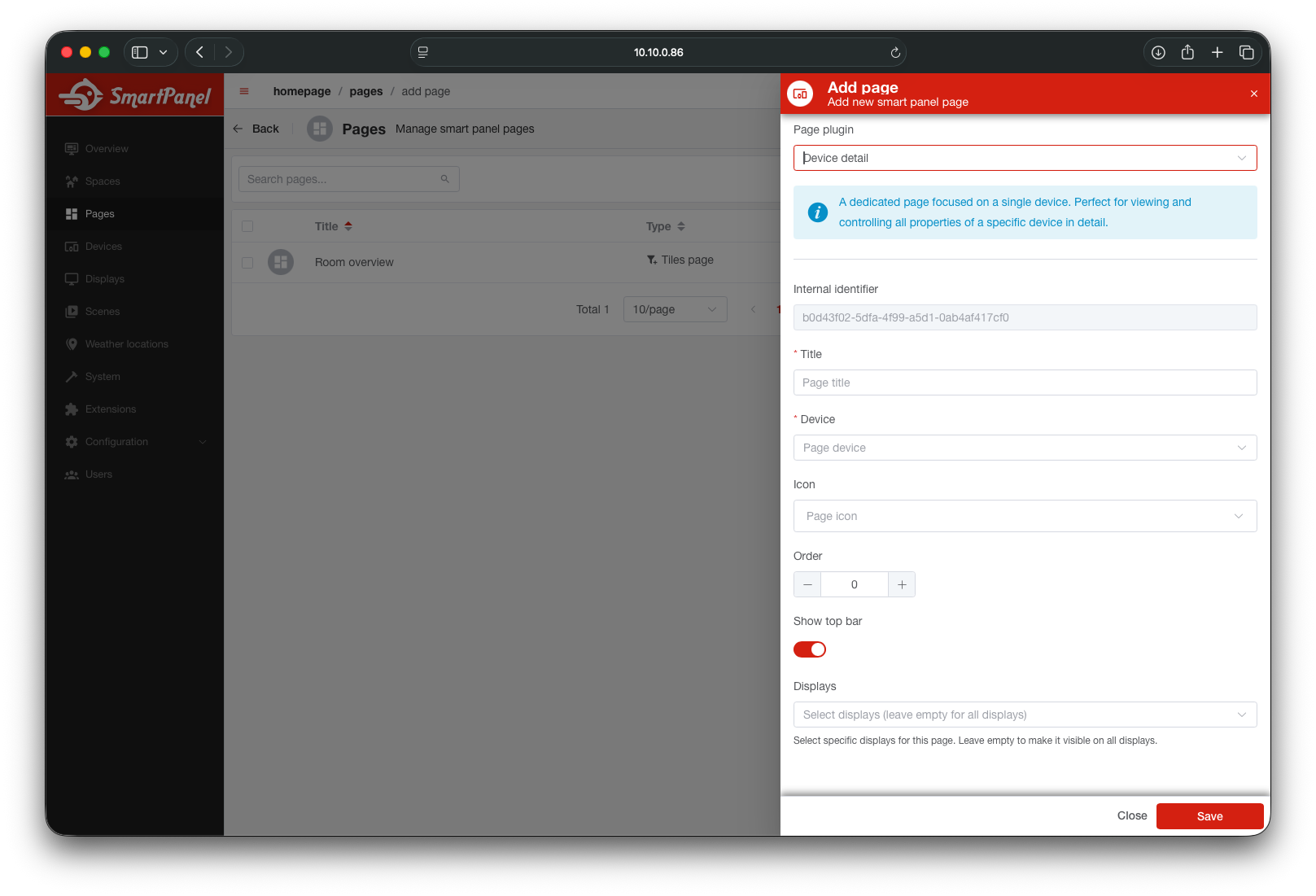
Fill in Page Details
- Plugin (Page Type) — choose the layout plugin:
Tiles Page— displays a grid of interactive tiles (great for dashboards)Cards Page— displays grouped device cards (compact overview layout)Device Detail Page— displays a detailed view for a specific device
- Title — name shown in the admin and on the panel display
- Icon (optional) — a visual icon to help identify the page
- Order — sets the display order on the panel
Configuring Tiles
Open any Tiles Page and click Configure to enter the tile layout editor. Here you can add, rearrange, and remove tiles.
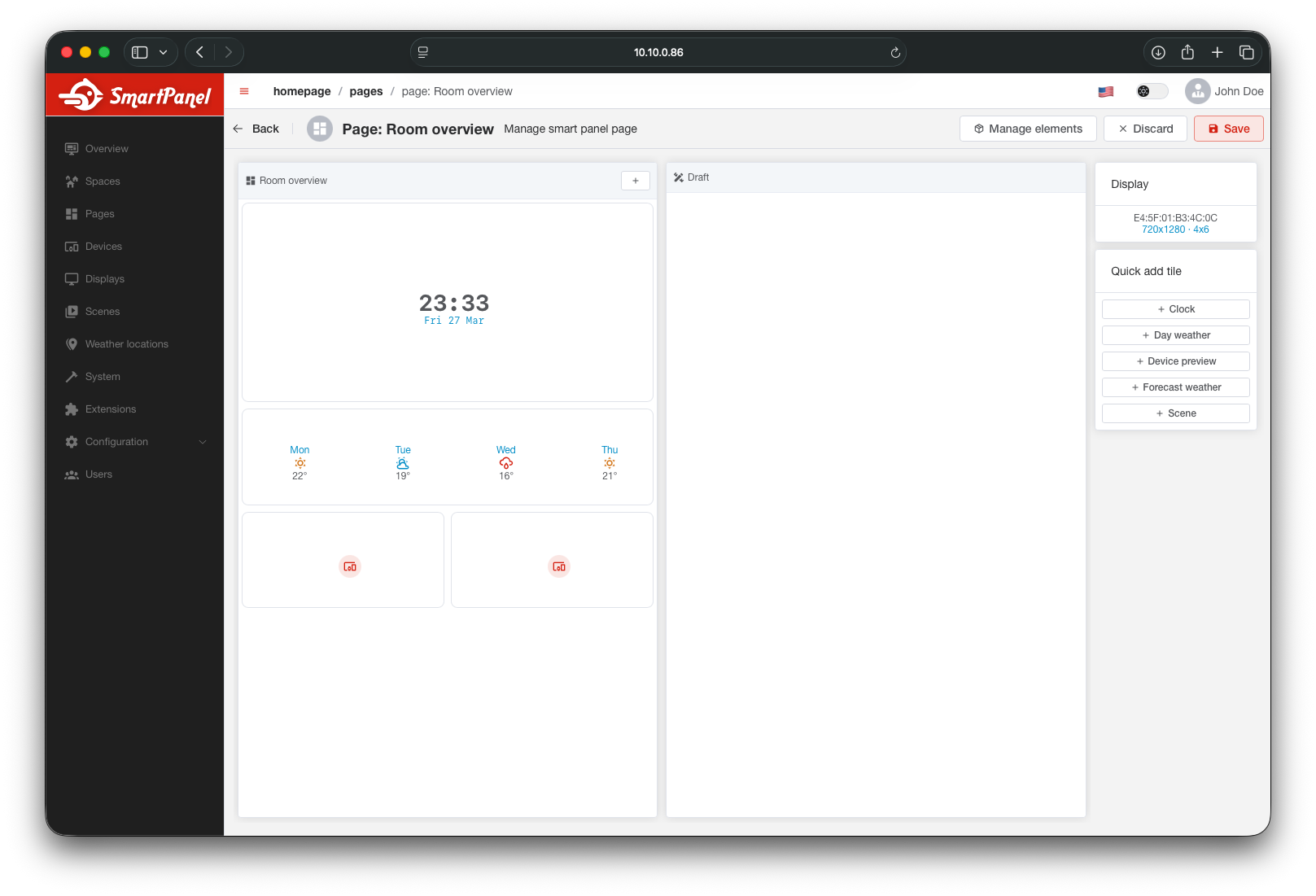
Adding a Tile
Click the + button in an empty grid area to add a tile. Depending on the selected tile plugin, you’ll be asked to:
- Select a device the tile will represent
- Choose how the tile should behave or what data it should show
The system uses the selected tile plugin to generate the appropriate configuration form. Plugins may offer different options depending on their purpose.
Rearranging or Removing Tiles
- Drag and drop tiles to reposition them on the grid
- To remove a tile, drag it into the “Drop here to remove” area
Page Types
| Type | Description |
|---|---|
| Tiles Page | Flexible grid of interactive tiles — fully customizable layout |
| Cards Page | Tiles organized into grouped cards — compact overview |
| Device Detail Page | Auto-generated view for a specific device — not editable |
Tiles and Cards pages support full customization via the admin UI. Device Detail pages are system-generated and show all channels and properties automatically.
What’s Next?
- Add devices to your Spaces so they appear on the panel display
- Create Scenes to add one-tap automations
- Explore the API Reference for programmatic page management