Spaces & Rooms
Spaces let you organize your devices by physical location — rooms, floors, and outdoor areas. This makes it easier to manage devices, build dashboards, and create scenes that target specific areas of your home.
How Spaces Work
Spaces use a two-level hierarchy:
- Zones — larger groupings like floors or outdoor areas (e.g., “Ground Floor”, “Backyard”)
- Rooms — individual spaces within zones (e.g., “Living Room”, “Kitchen”, “Bedroom”)
Rooms can optionally belong to a zone, but they can also exist independently.
Zone Categories
| Category | Examples |
|---|---|
| Floors | Ground Floor, First Floor, Second Floor, Basement, Attic |
| Outdoor | Front Yard, Backyard, Garden, Terrace, Balcony, Driveway |
| Utility | Utility areas, Security perimeter |
Room Categories
| Category | Examples |
|---|---|
| Living areas | Living Room, Bedroom, Guest Room, Nursery |
| Kitchen & dining | Kitchen, Dining Room, Pantry |
| Service areas | Bathroom, Toilet, Laundry |
| Utility | Garage, Workshop, Office, Storage, Closet, Utility Room |
| Entertainment | Media Room, Gym |
| Access | Hallway, Entryway |
Spaces Overview
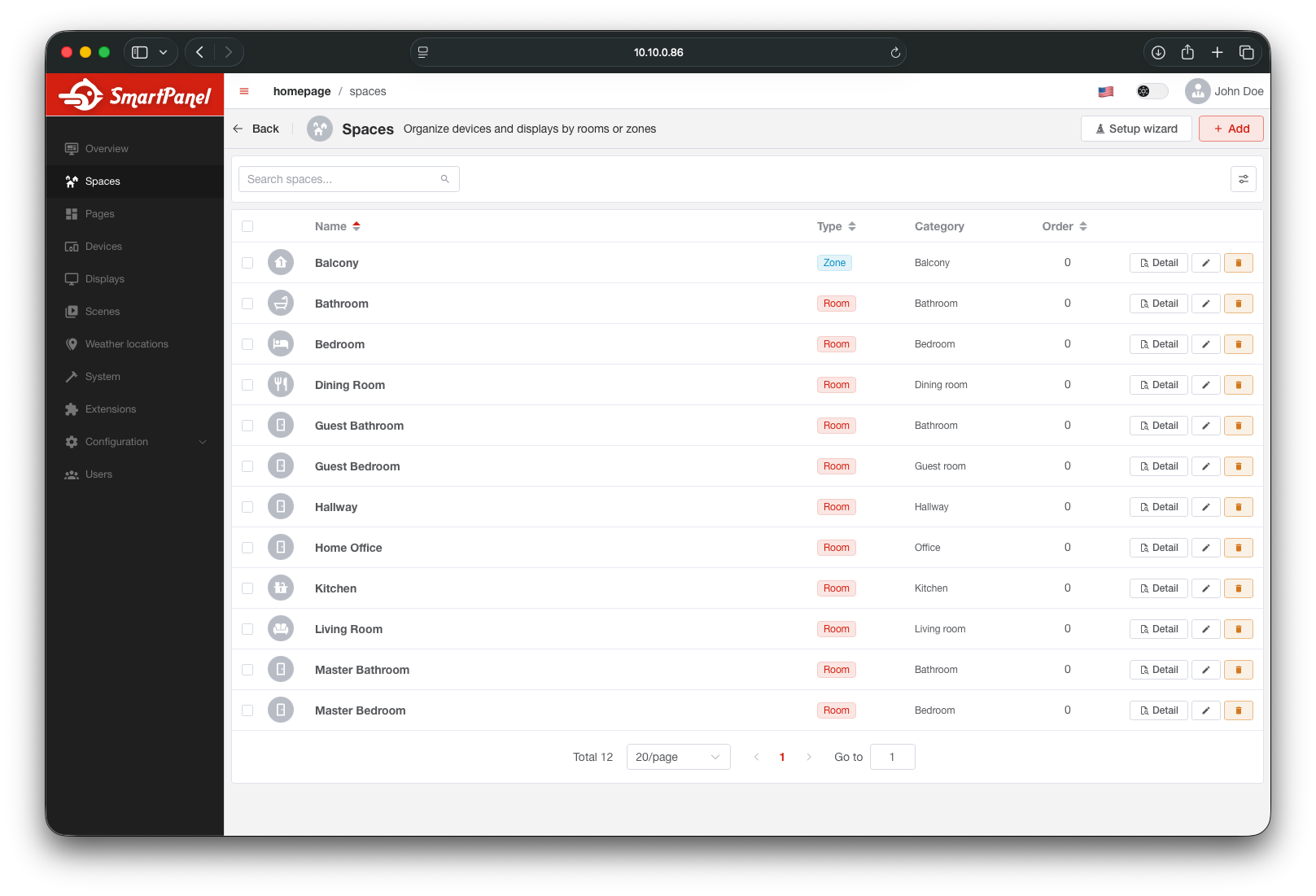
Navigate to Spaces in the admin sidebar to see all your zones and rooms.
Adding a Space
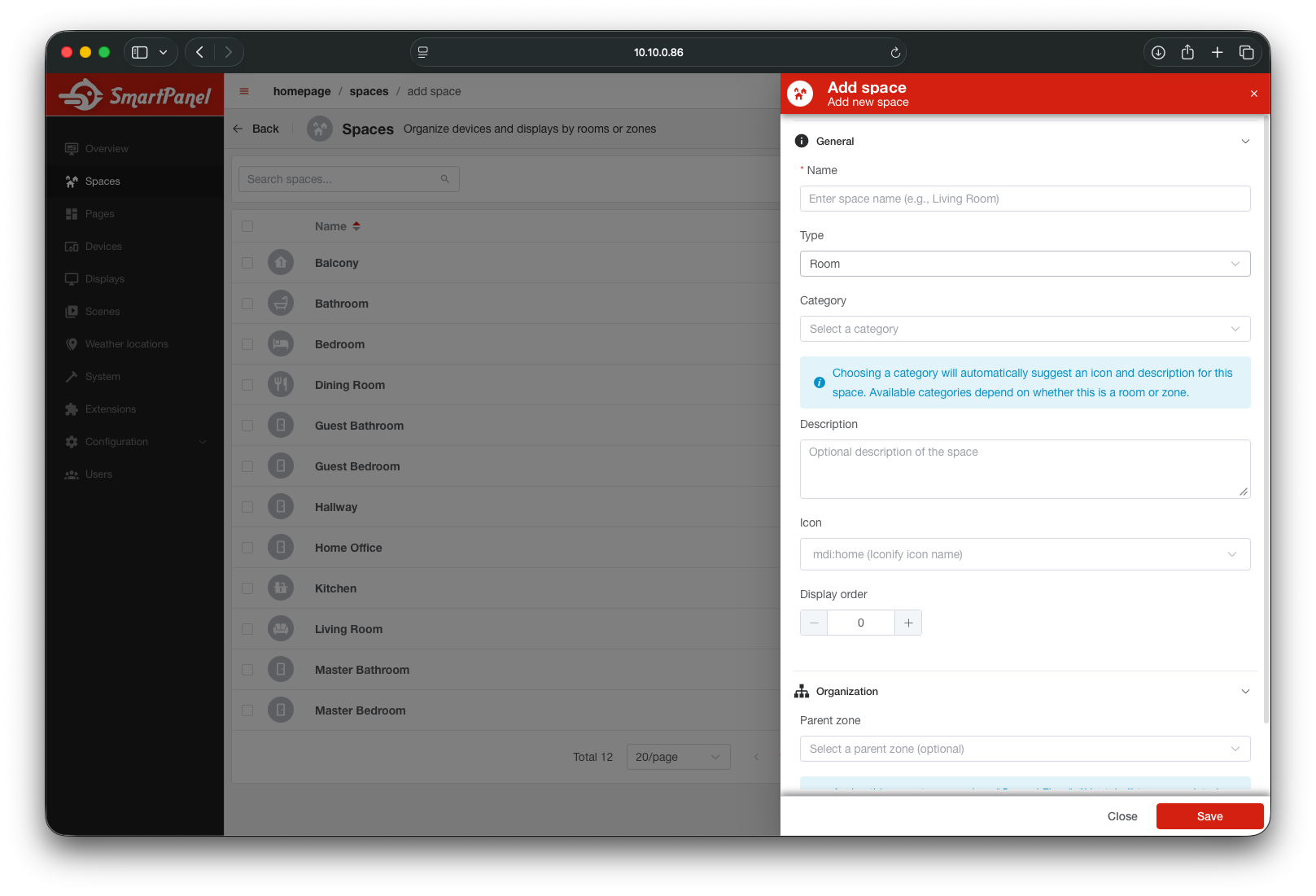
Click + Add
In the Spaces section, click the add button to create a new zone or room.
Fill in Details
- Name — display name (e.g., “Living Room”)
- Type — choose
ZoneorRoom - Category — specific type from the tables above
- Parent zone (rooms only) — optionally assign to a zone
- Icon — MDI icon identifier (e.g.,
mdi:sofa)
Space Detail
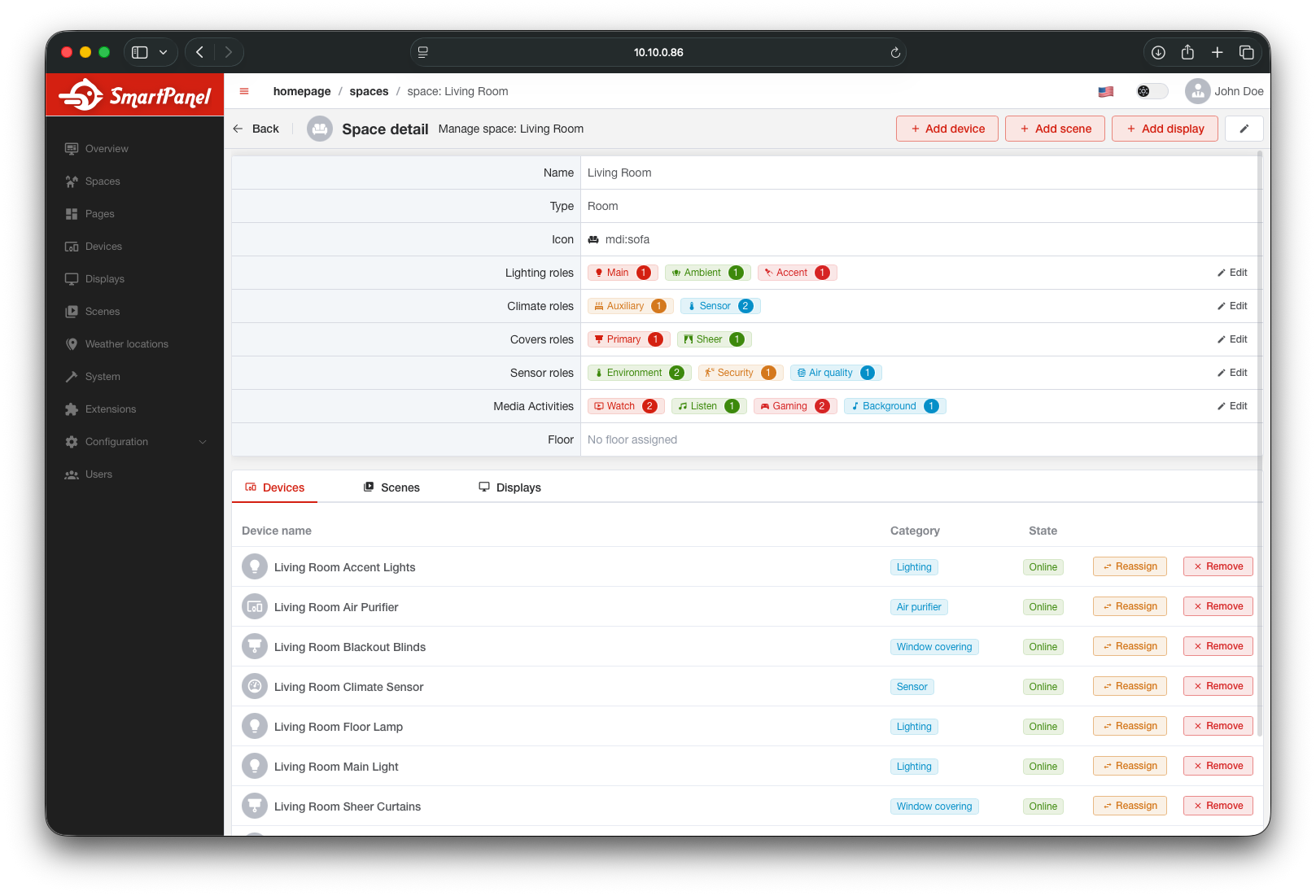
Click on any space to see its full configuration — assigned devices, scenes, displays, and domain settings.
Assigning Devices
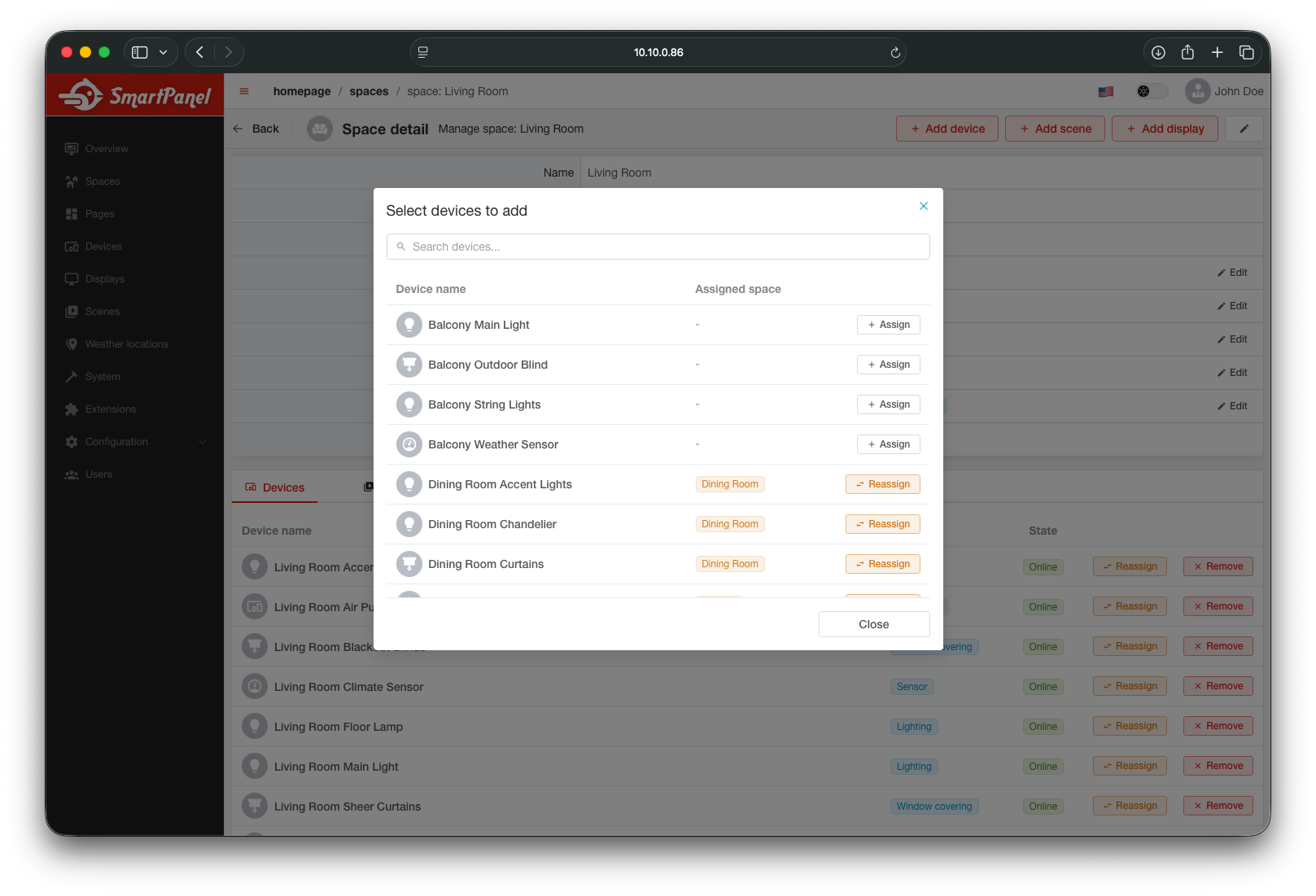
Each space can have devices assigned to it. This determines which devices appear on the panel display for that room.
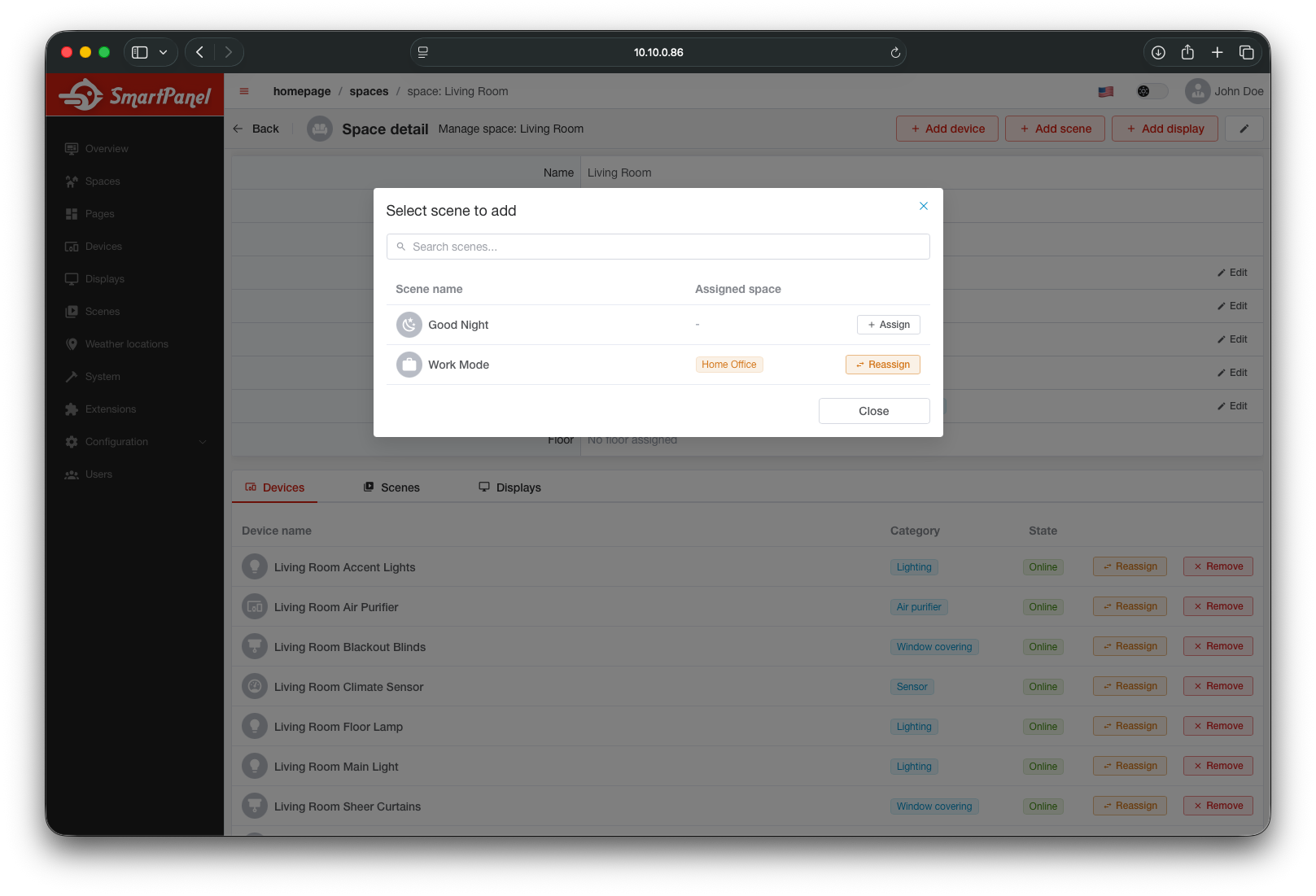
Assigning Scenes
You can link scenes to a space so they’re easily accessible from that room’s panel view.
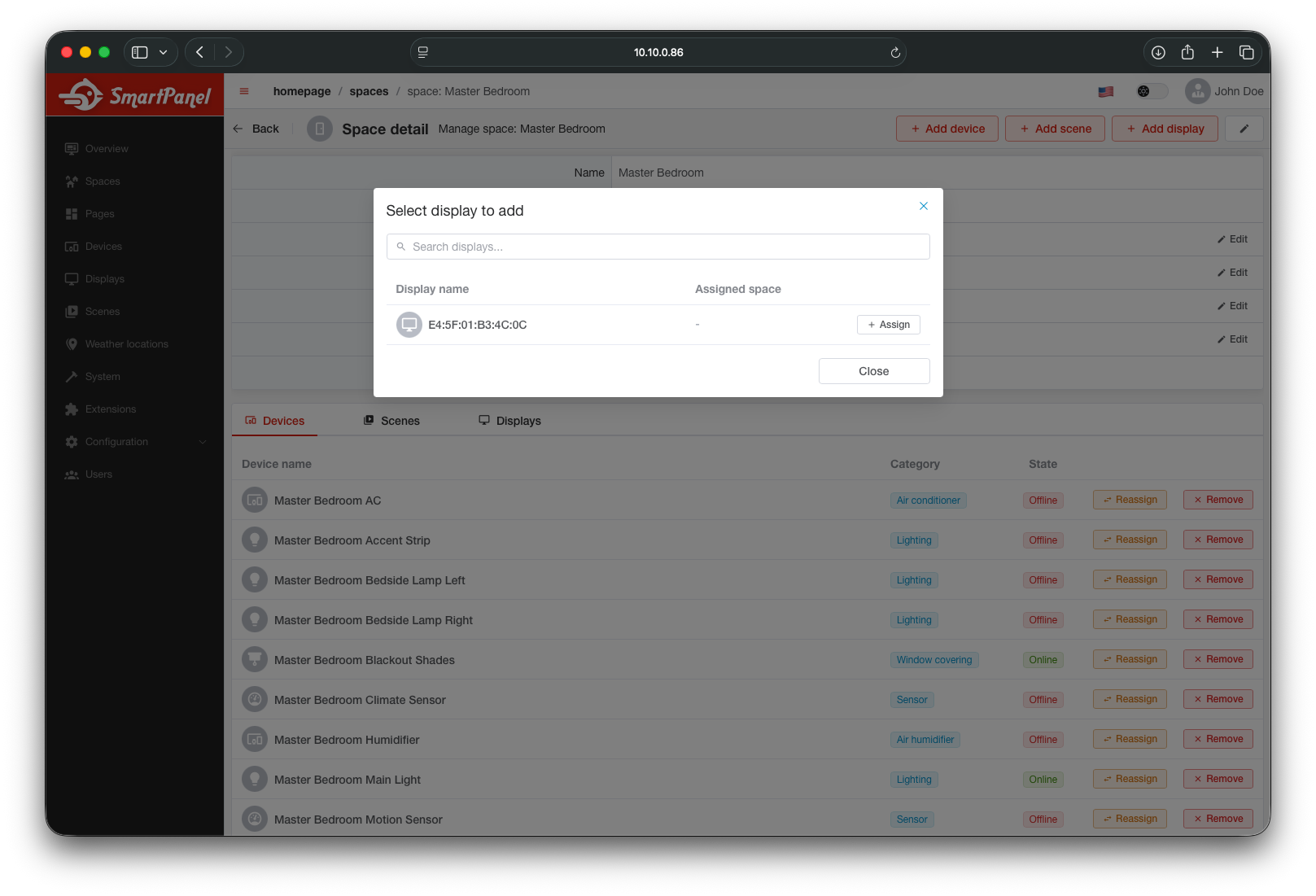
Assigning a Display
Assign a panel display to a space to define which room the physical device is mounted in. This controls what the display shows by default.
Configuring Domains
Each space has domain-specific settings that control how devices are grouped and presented on the panel display. Domains include lighting, climate, shading, sensors, and media.
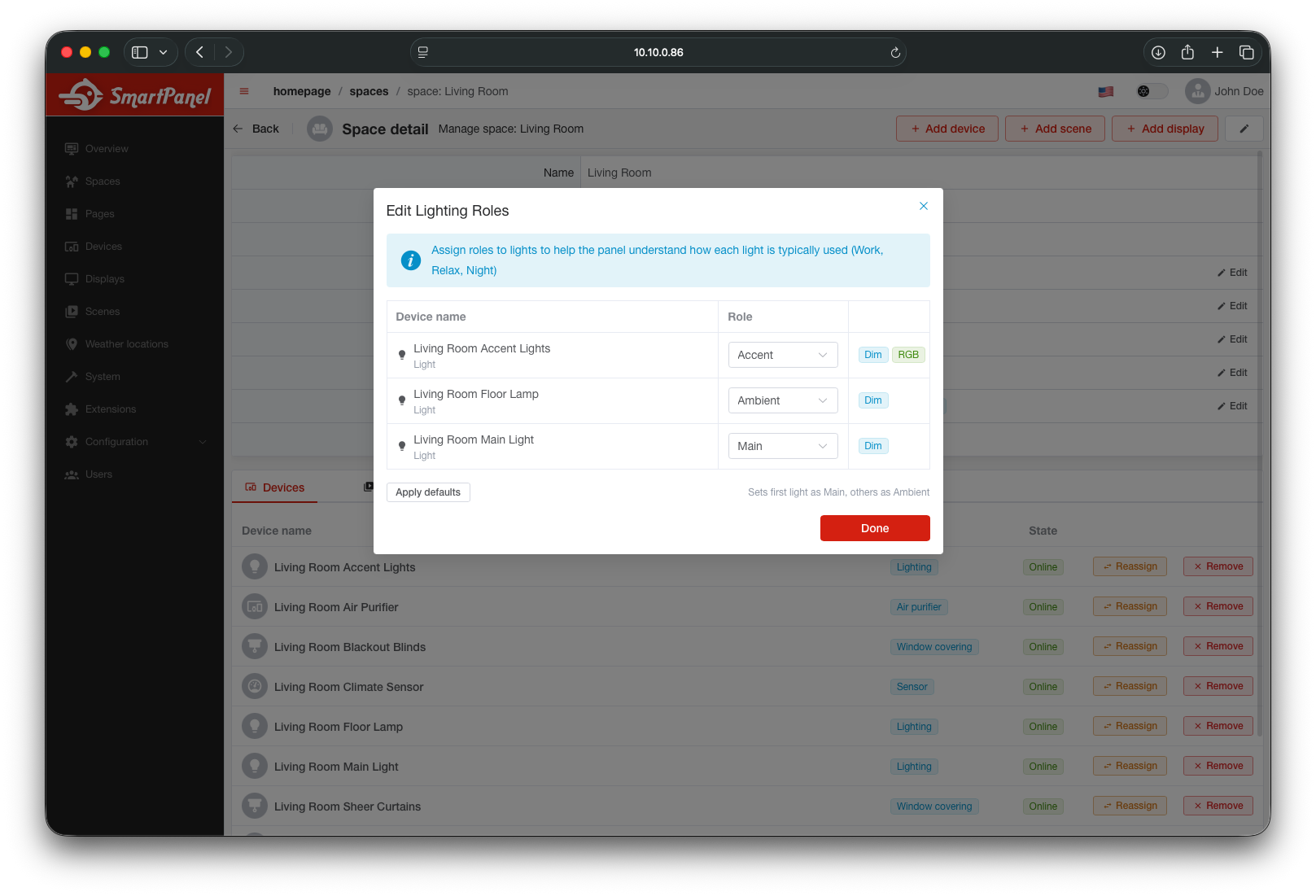
Lights
Configure which light devices and channels are controlled from this room’s lighting screen.
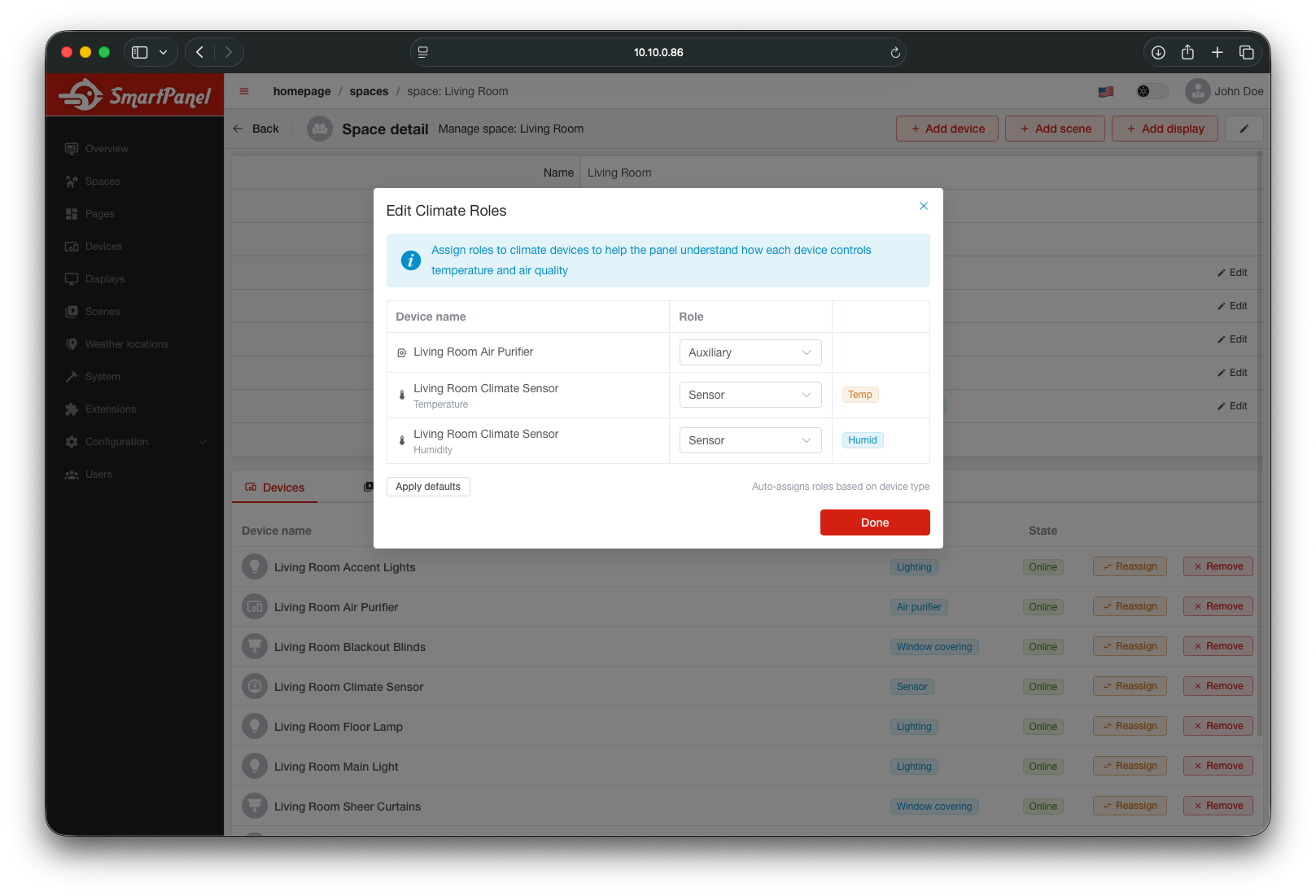
Climate
Set up thermostats, heating units, and other climate devices for the room.
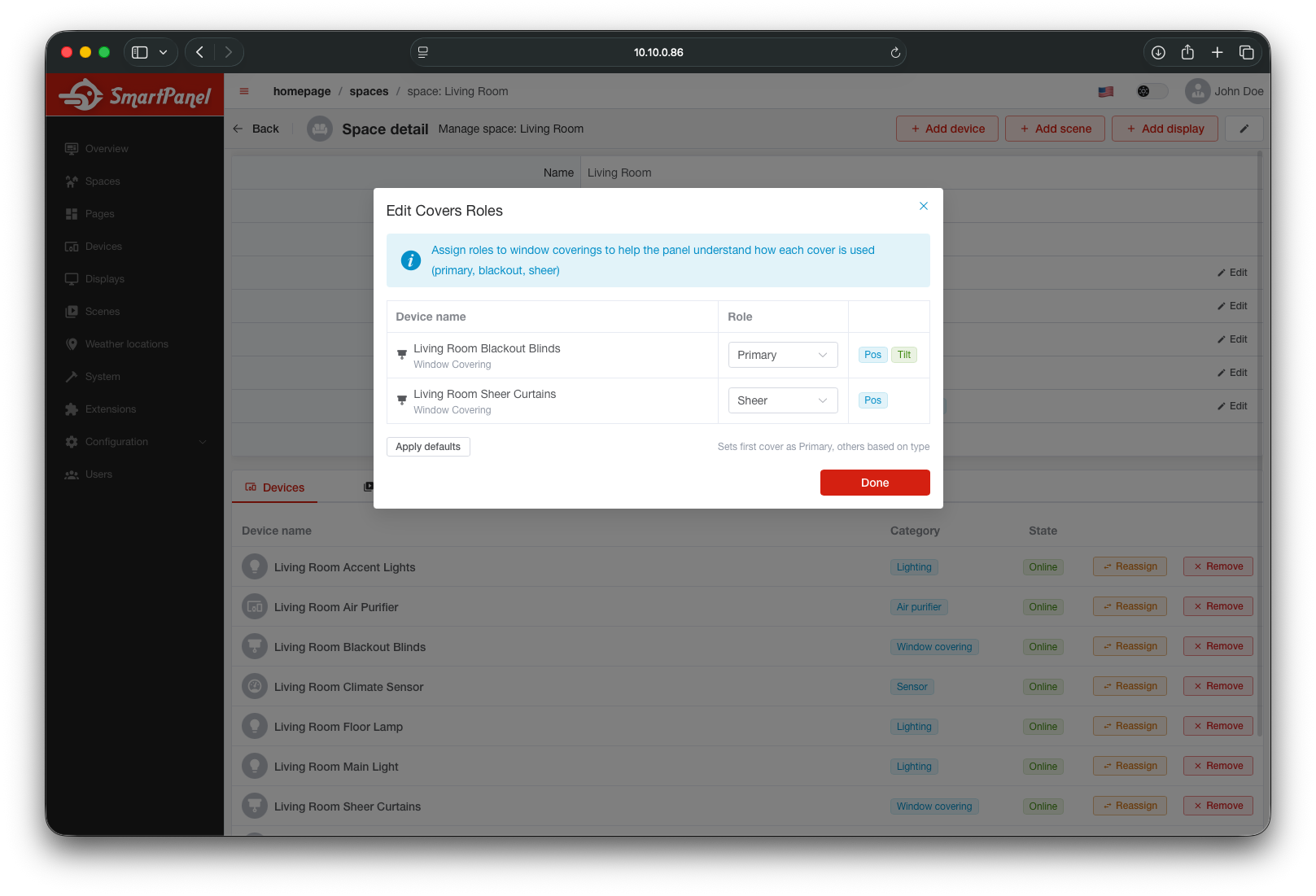
Shading
Assign blinds, shutters, and curtains to control from this room.
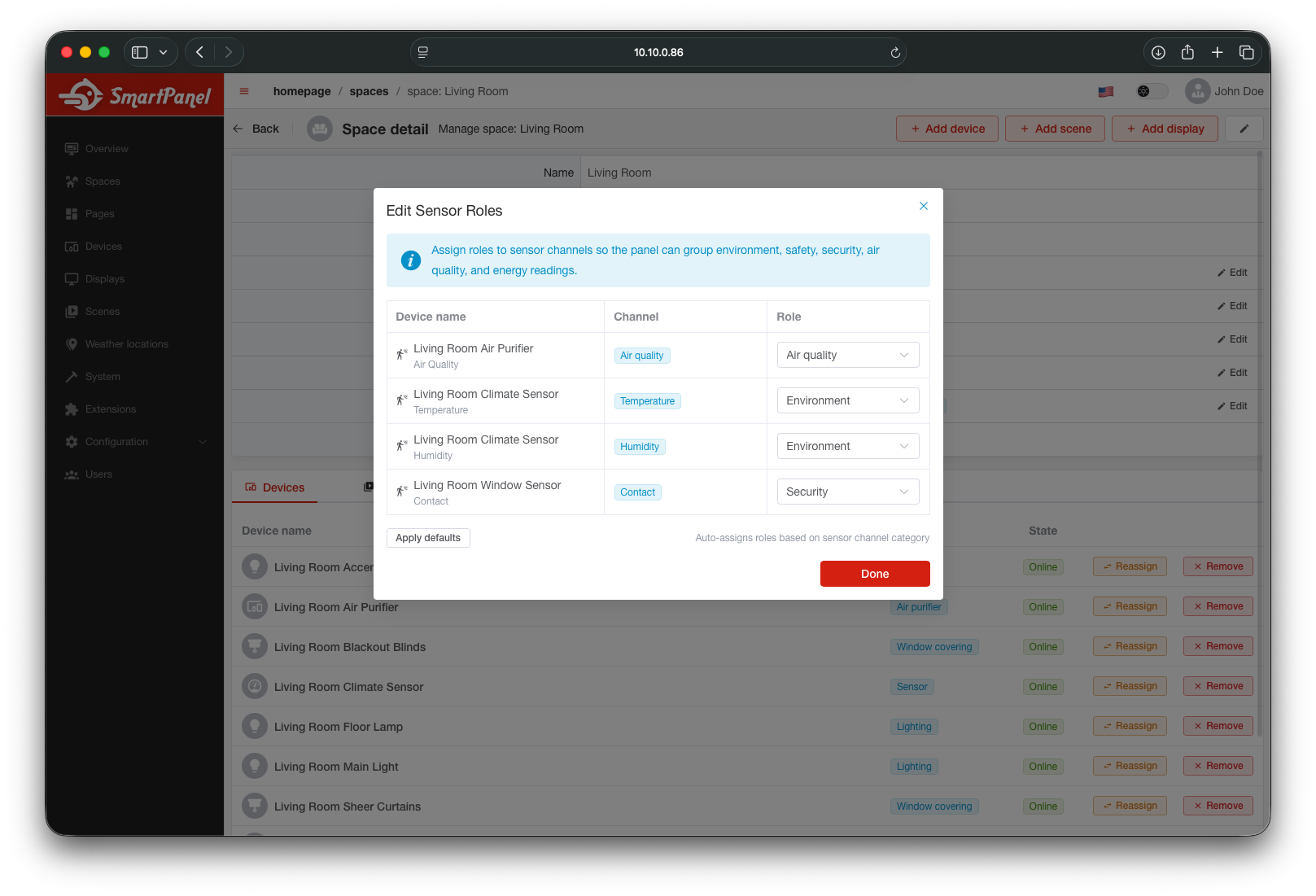
Sensors
Choose which sensors display their readings on this room’s sensor screen.
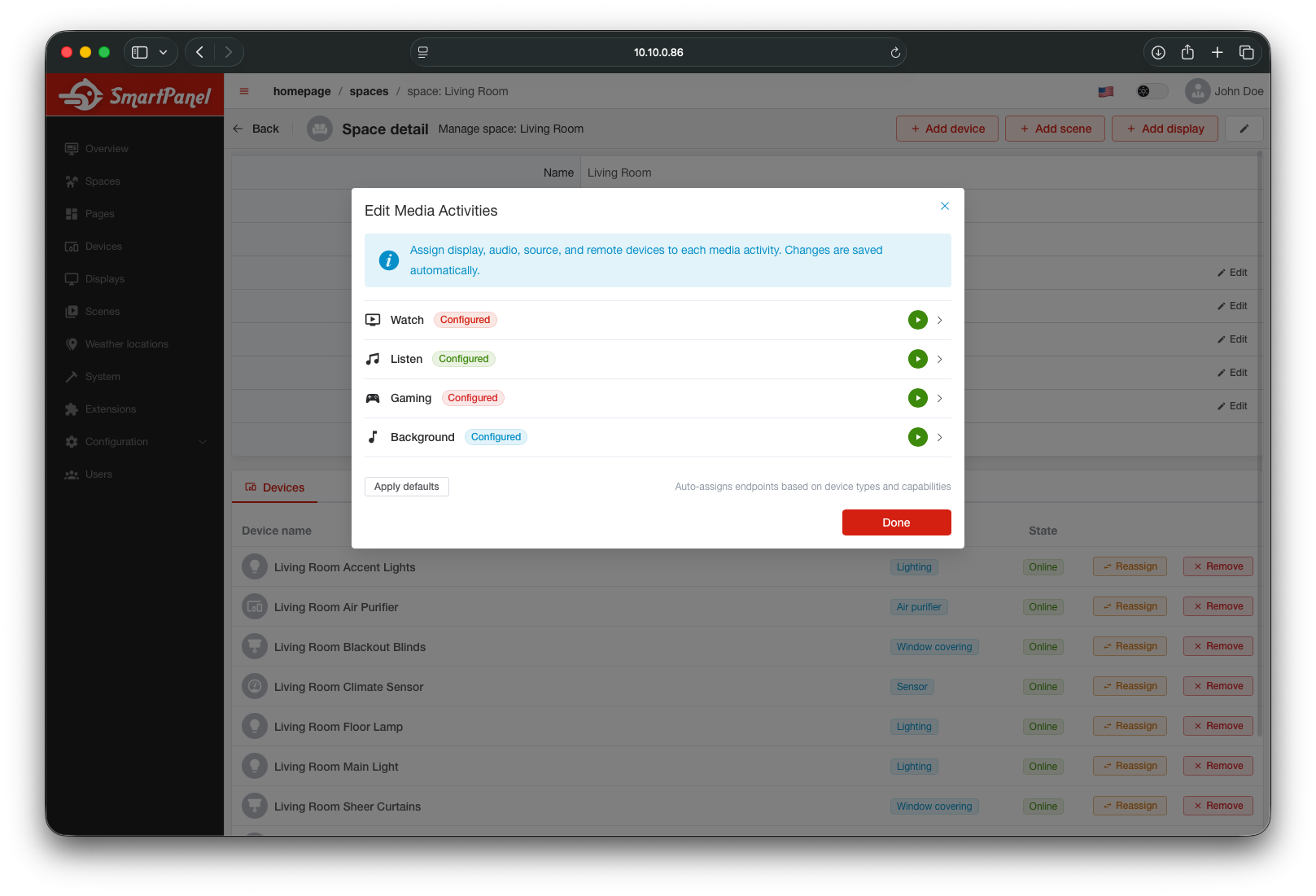
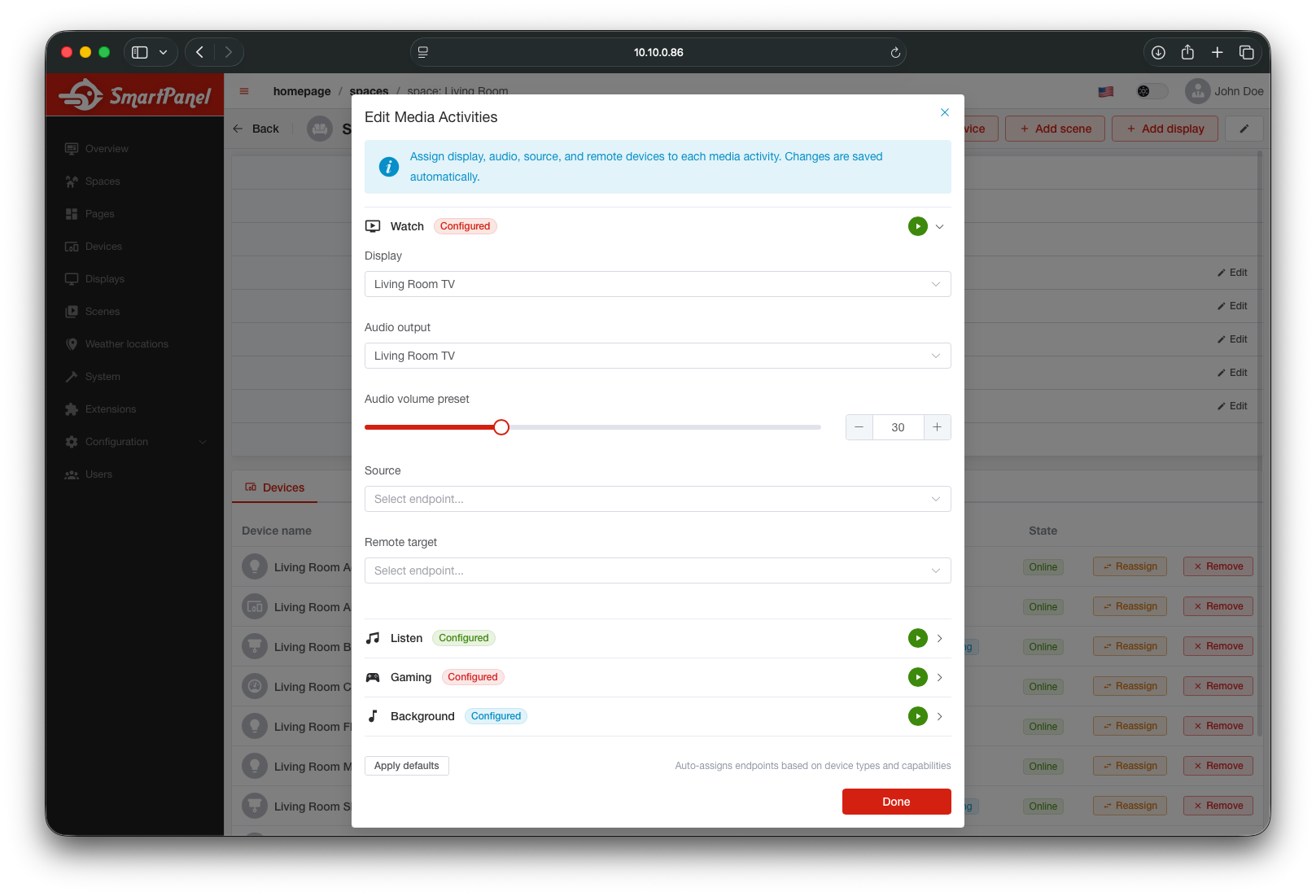
Media
Define media activities (Watch, Listen, Gaming, etc.) and assign devices to each activity.
Spaces Wizard
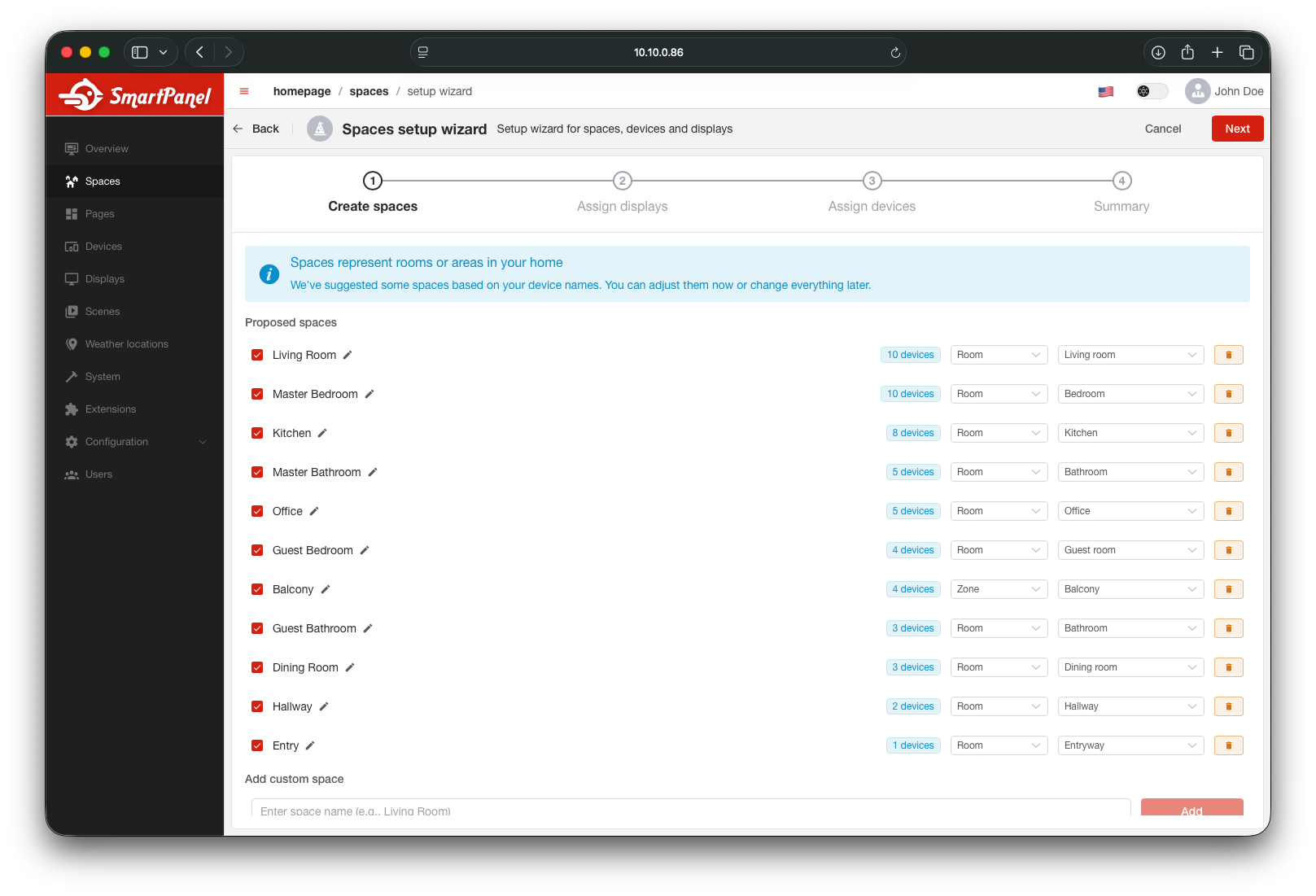
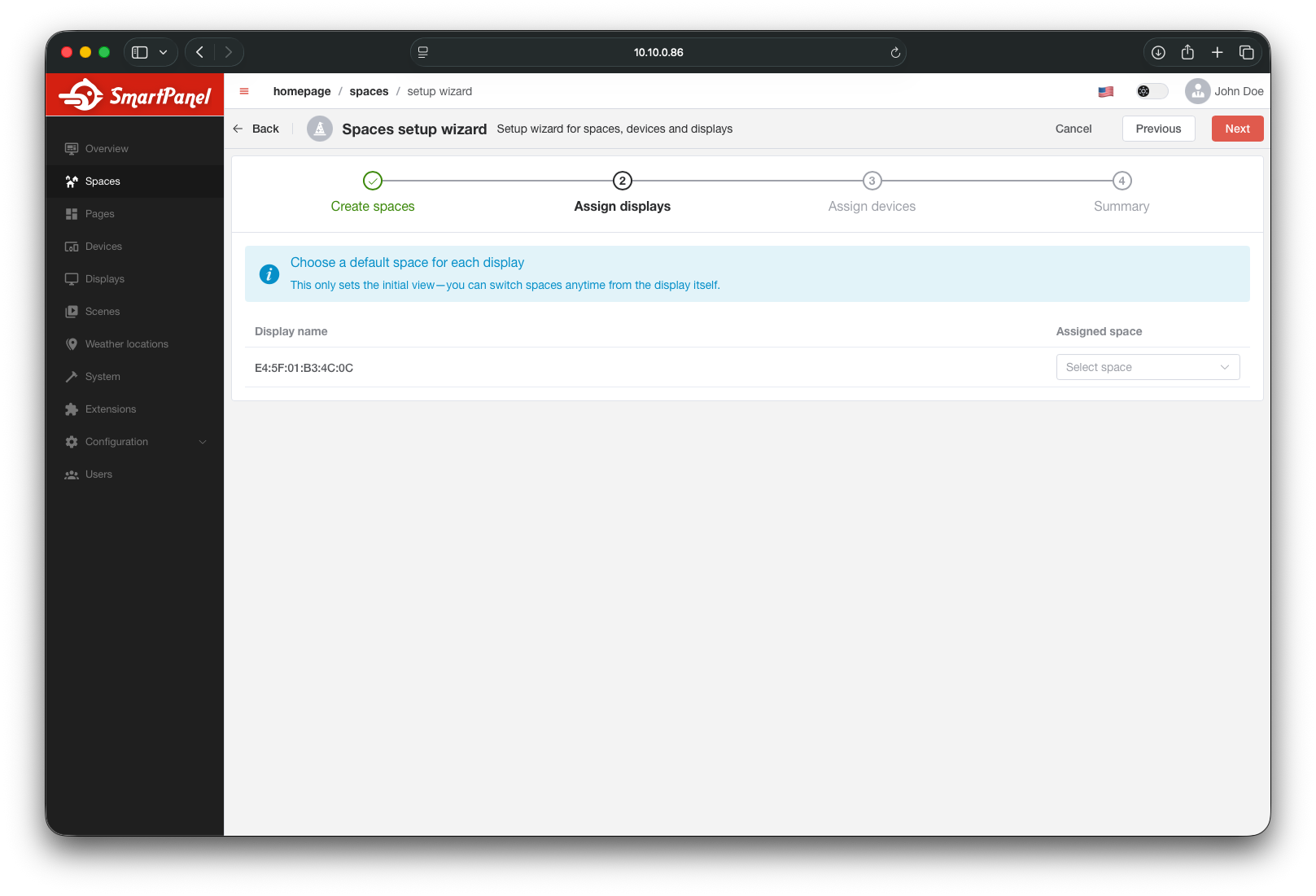
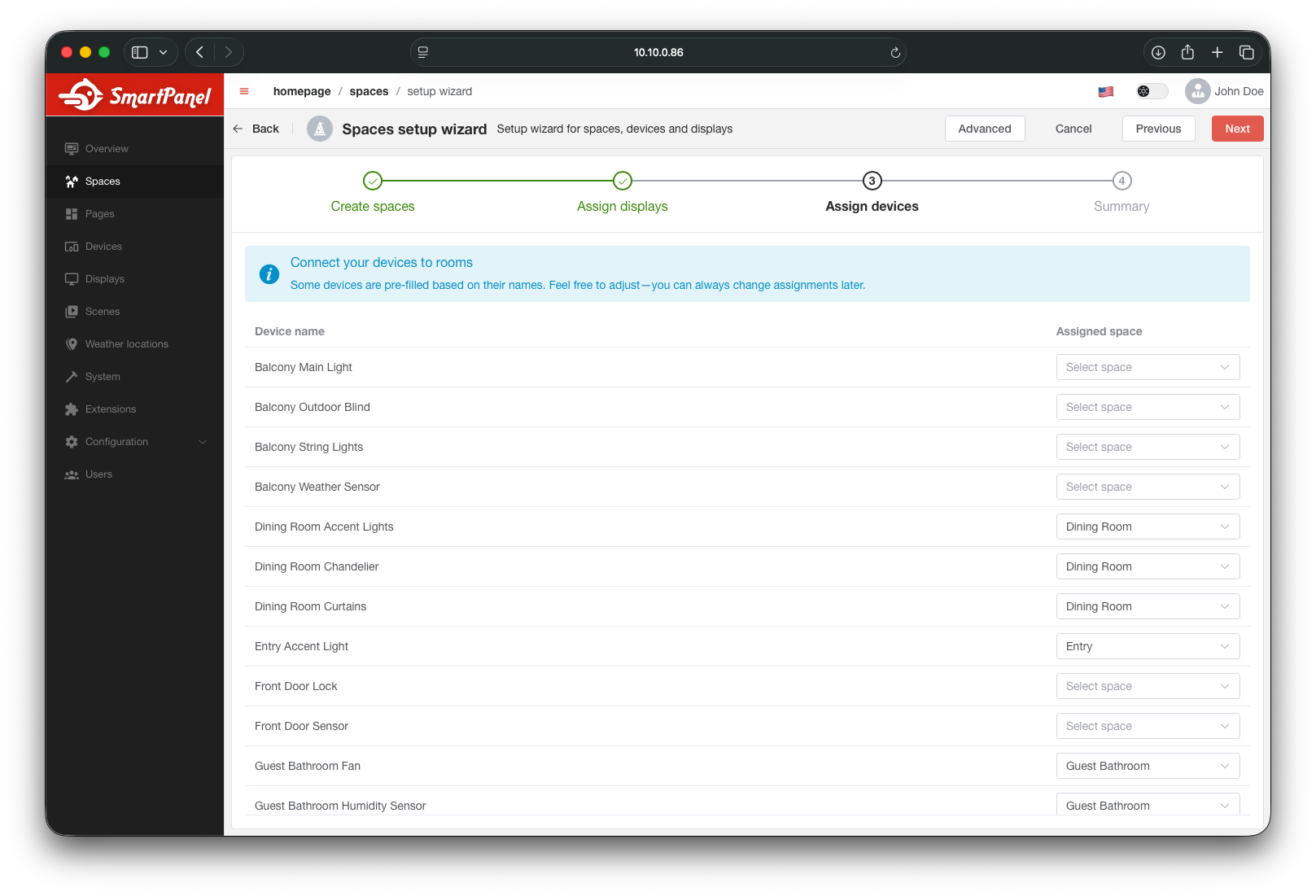
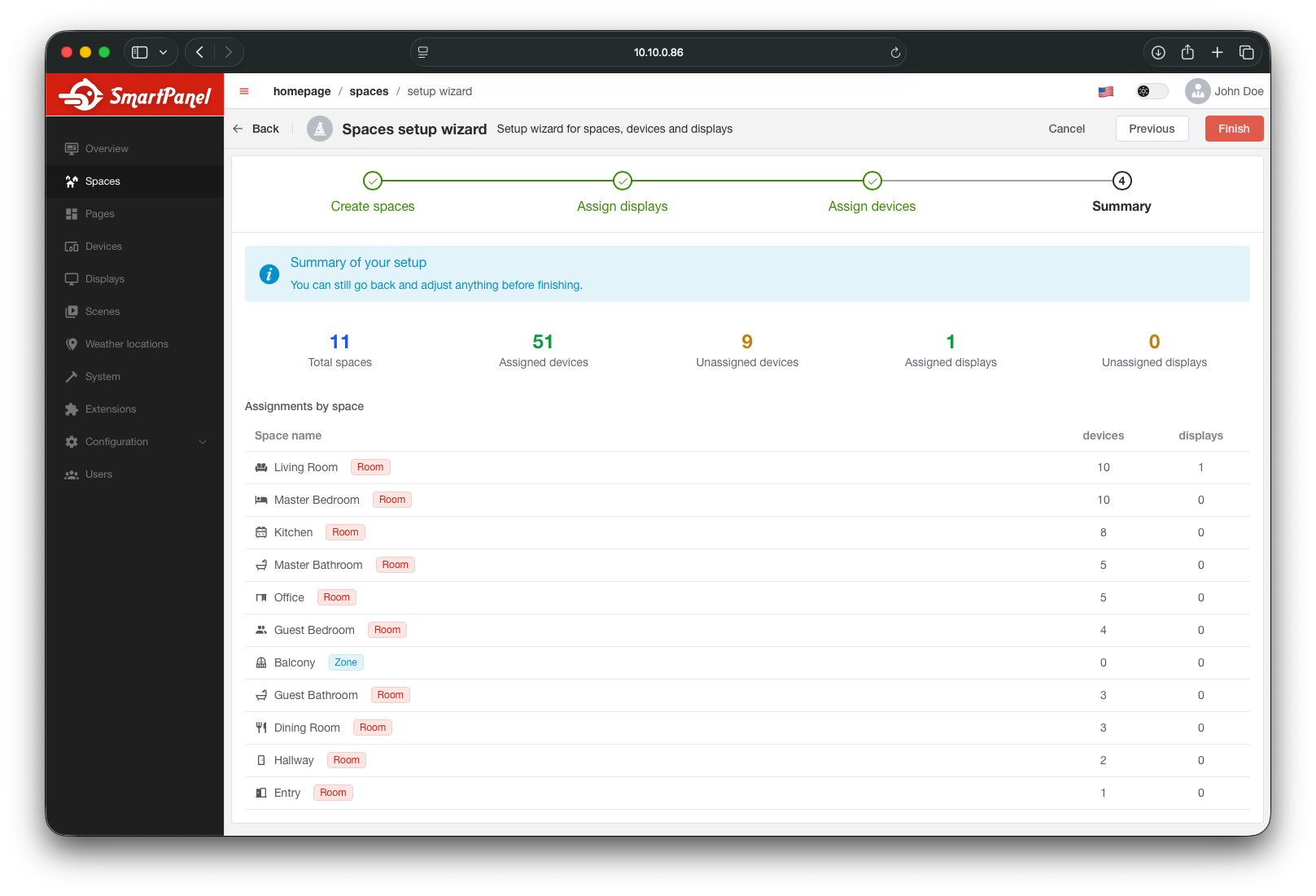
For first-time setup, the Spaces Wizard guides you through creating rooms and assigning devices and displays in a step-by-step flow.
Create Spaces
Define your rooms and zones in one go.
Assign Displays
Link your panel displays to the rooms where they are physically mounted.
Assign Devices
Distribute your devices across rooms.
Done
Your spaces are configured and ready to use.
Deleting a Space
When you delete a zone, its child rooms become orphaned — they still exist but lose their parent. When you delete a room, its assigned devices are unassigned.
What’s Next?
- Create room-specific Scenes that target devices in a space
- Build your Dashboard to customize the panel display
- Explore the API Reference for full endpoint documentation