Scenes
Scenes let you trigger multiple device actions with a single tap. For example, a “Movie Night” scene could dim the lights, close the blinds, and turn on the TV — all at once.
How Scenes Work
A scene is a named collection of actions. When you trigger a scene, the system executes each action in order. Actions can target any device property — turning things on/off, setting brightness levels, changing temperatures, and more.
Each scene has:
- Name — a friendly label (e.g., “Good Morning”, “Away Mode”)
- Category — an optional grouping like lighting, climate, media, security, or energy
- Actions — the list of device commands to execute
- Space — an optional room or zone the scene belongs to
Scene Categories
Scenes can be organized by category to make them easier to find:
| Category | Use Case |
|---|---|
| Lighting | Control lights across rooms |
| Climate | Set thermostats and HVAC |
| Media | Control speakers, TVs, and streaming |
| Security | Arm/disarm sensors and locks |
| Energy | Optimize power consumption |
| Morning / Night | Daily routines |
| Work / Relax / Party / Movie | Activity-based presets |
| Home / Away | Presence-based automation |
| Custom / Generic | Anything else |
Scenes Overview
Navigate to Scenes in the admin sidebar to see all your scenes.
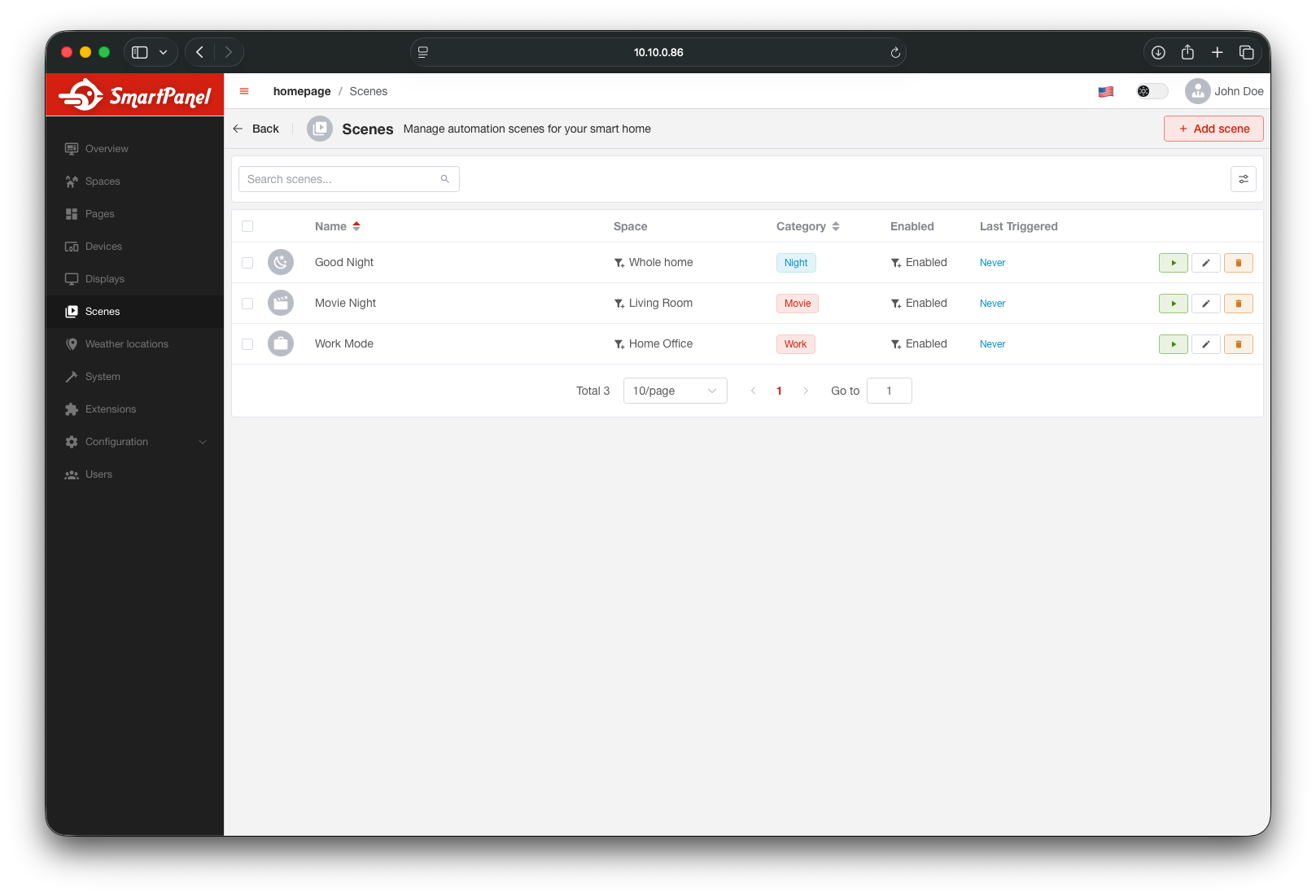
From here you can view scene details, create new scenes, or trigger existing ones.
Creating a Scene
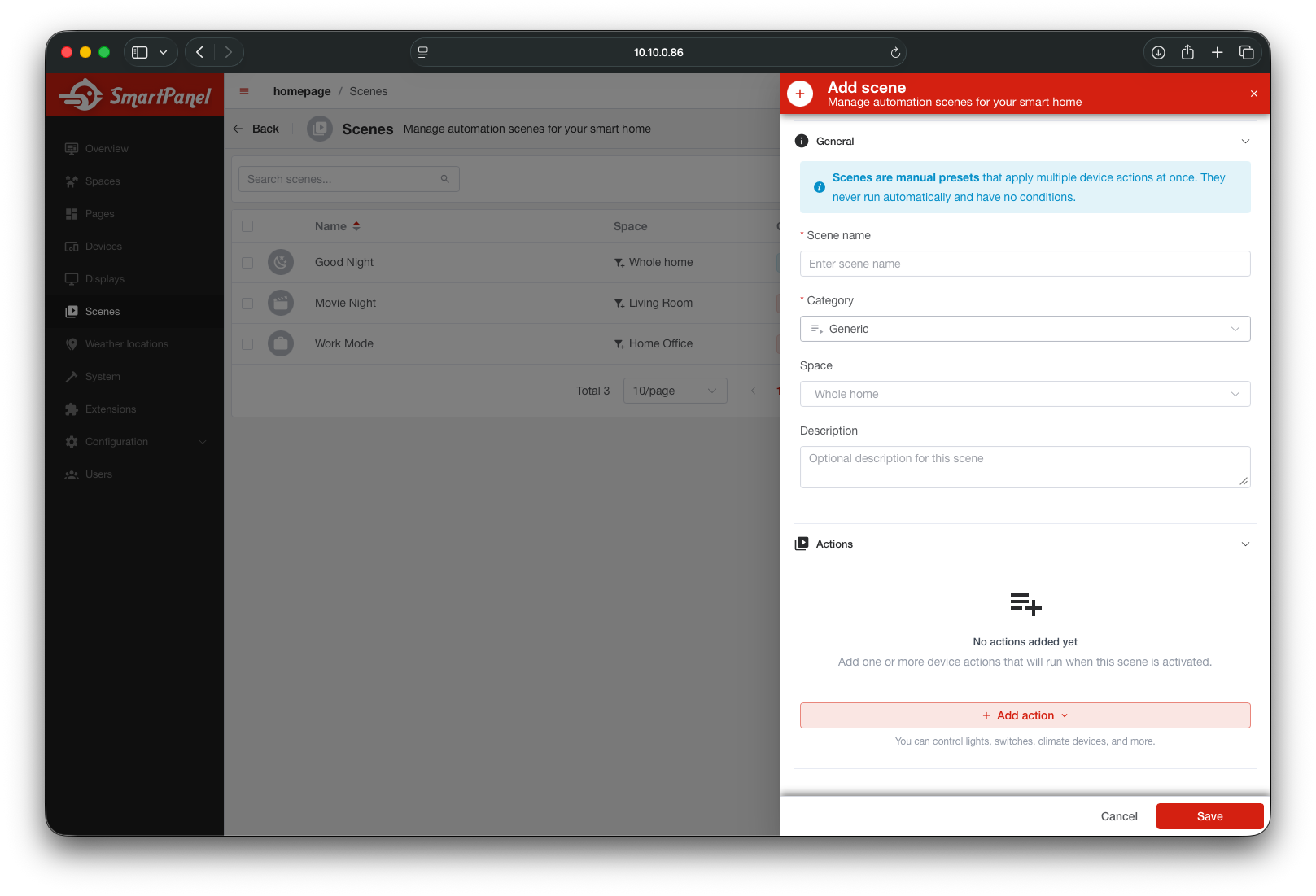
Click + Add Scene
In the Scenes section, click the add button to create a new scene.
Fill in Scene Details
- Name — display name (e.g., “Movie Night”)
- Category — choose from the categories above
- Description (optional) — a short note about what the scene does
- Space (optional) — assign the scene to a room or zone
Add Actions
Click + Add Action to define what happens when the scene is triggered. Each action targets a specific device property and sets it to a desired value.
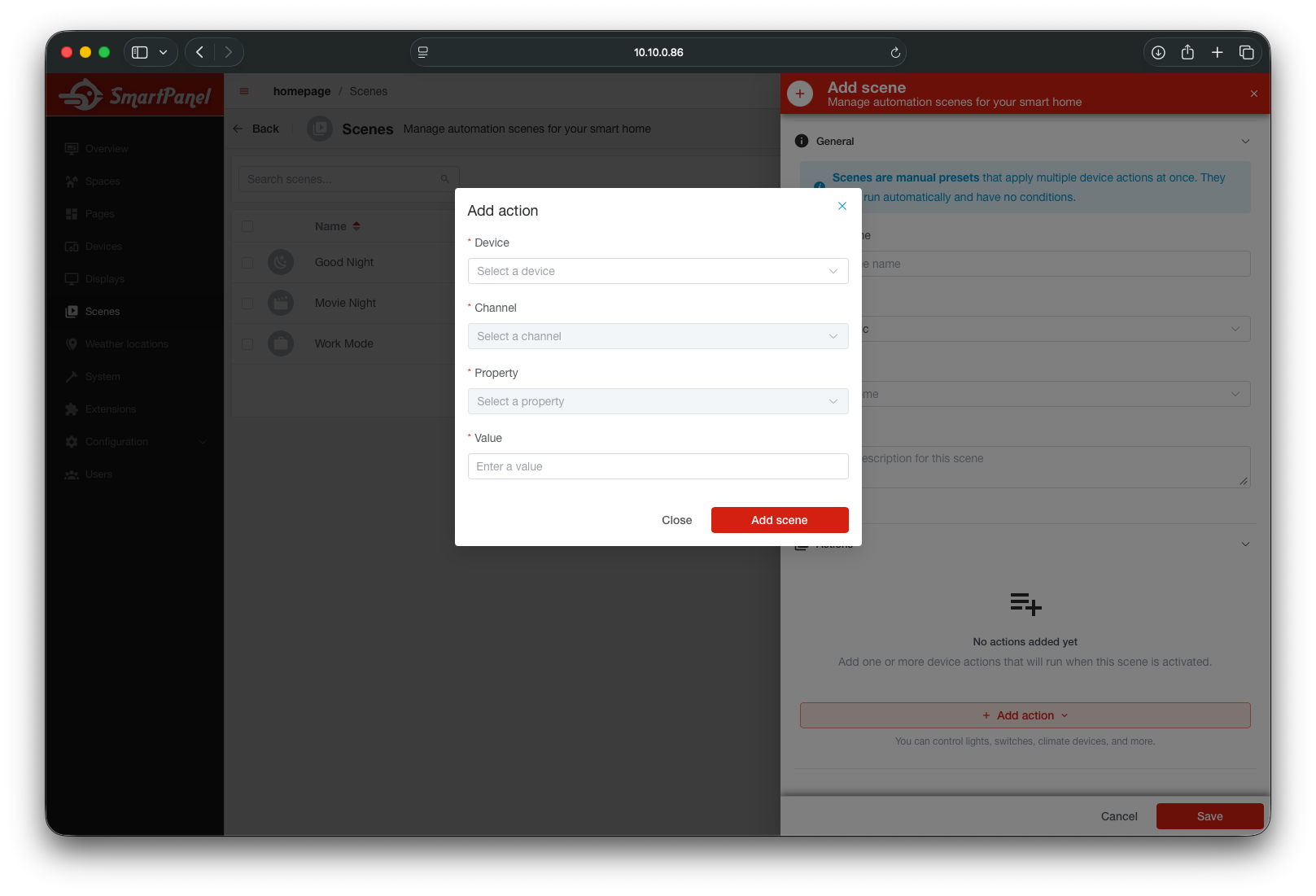
For each action, select:
- Device — the target device
- Channel — which capability to control
- Property — the specific data point (e.g., power, brightness)
- Value — the desired state (e.g.,
on,50%,22°C)
Editing Actions
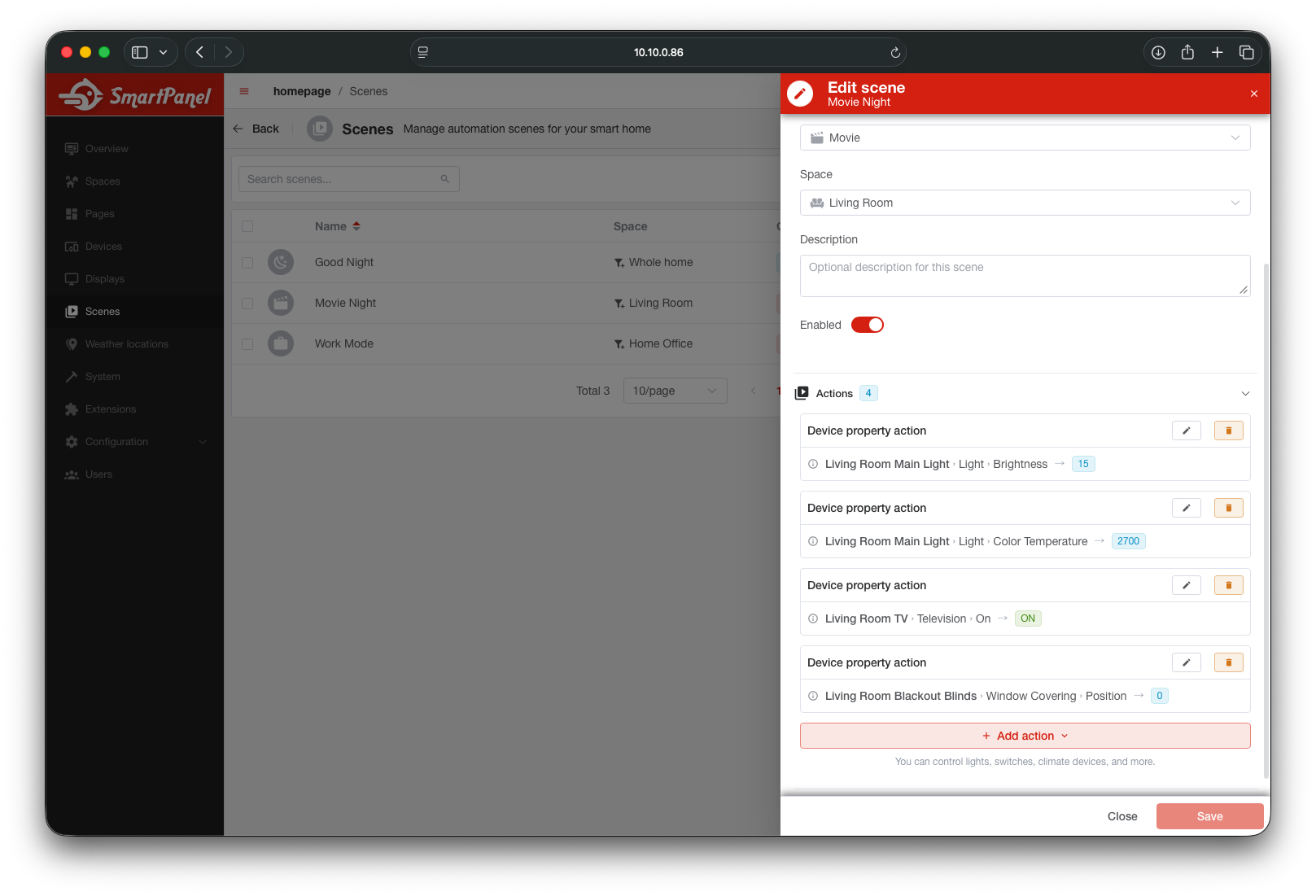
Open any scene to review and modify its actions. You can reorder, edit, or remove individual actions.
Scene Execution
When a scene is triggered:
- The system verifies the scene is enabled
- Actions are executed in order, targeting the specified device properties
- Each action’s result (success or failure) is tracked
Scene execution continues even if an individual action fails. This ensures that one unresponsive device doesn’t block the rest of your scene.
Some scenes created by plugins may not be editable — they are managed by the plugin and cannot be modified or deleted through the admin interface.
What’s Next?
- Organize devices into Spaces for better scene targeting
- Build your Dashboard to add scene triggers to your display
- Explore the API Reference for programmatic scene management