WiFi Setup (Captive Portal)
When you boot a Smart Panel pre-built Raspbian image without any WiFi configuration, the device automatically creates a WiFi hotspot with a built-in setup portal. This lets you configure WiFi from any phone or laptop — no SSH, keyboard, or Ethernet cable required.
The captive portal is only available on Raspbian image installations. If you installed Smart Panel via the install script or npm, WiFi must be configured through your OS directly.
How It Works
Boot the device
Insert the SD card with the Raspbian image and power on. After the initial setup completes (about 1–2 minutes), a WiFi hotspot appears.
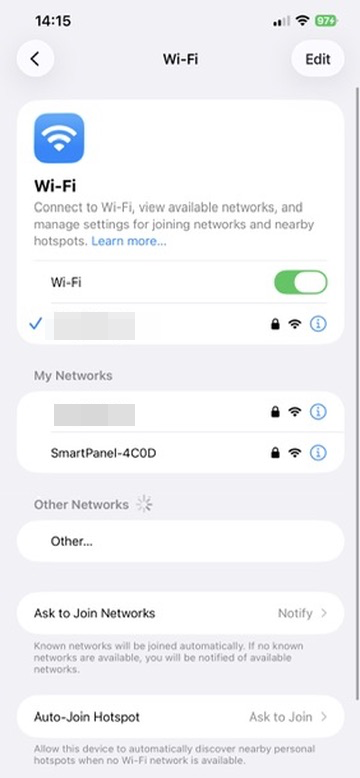
Connect to the hotspot
Look for a network named SmartPanel-XXXX (where XXXX is the last 4 characters of the device’s
MAC address). Connect using the password:
smartpanelThe hotspot uses WPA2 encryption.
Configure WiFi
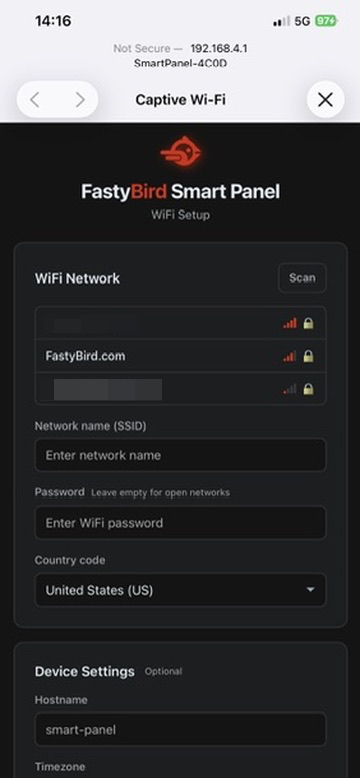
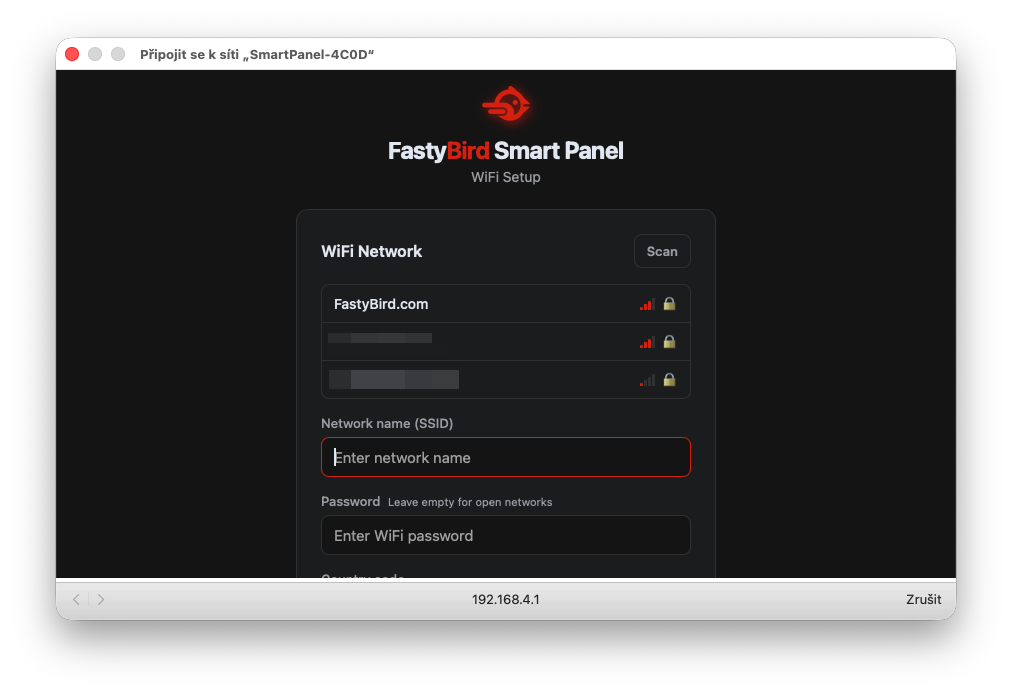
A setup page opens automatically through captive portal detection (works on iOS, Android, Windows, and macOS).
Mobile
Select your WiFi network from the list:
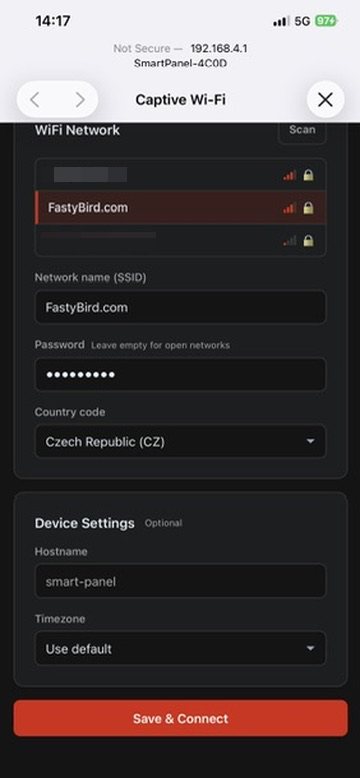
Fill in your WiFi password, country code, and optionally set a hostname and timezone. Then click Save & Connect:
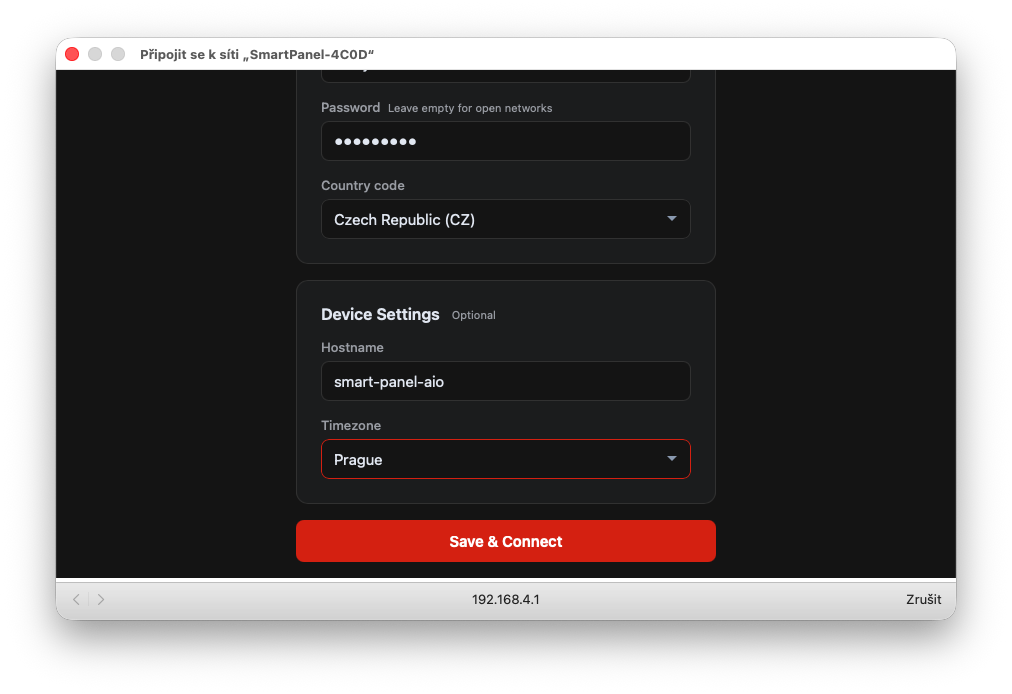
Save and connect
The device connects to the selected WiFi network. This may take up to 30 seconds.
Mobile
Once connected, the portal shows the address where Smart Panel is accessible:
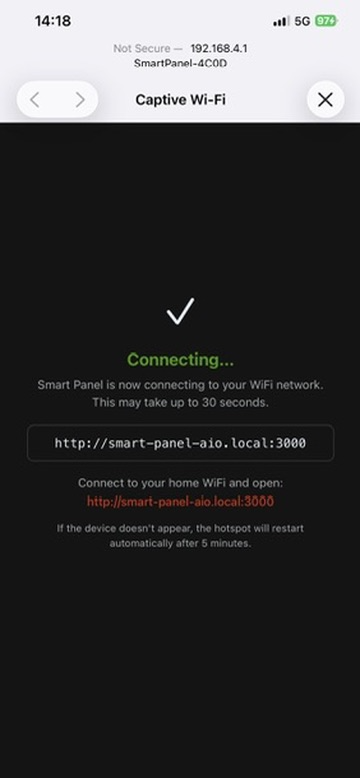
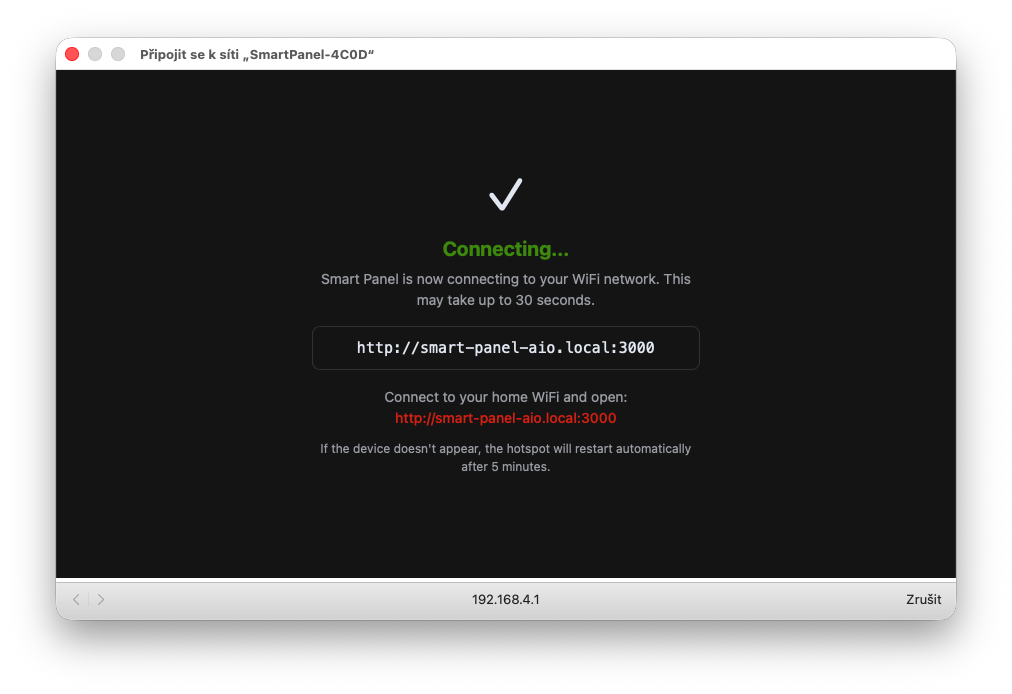
Reconnect your phone or computer to your home WiFi and open the displayed URL.
If the captive portal page doesn’t open automatically, navigate to http://192.168.4.1 in your browser
while connected to the hotspot.
Alternative: Boot Partition Config File
If you prefer to skip the captive portal entirely, create a file called smart-panel.conf on the SD card’s
boot partition before the first boot:
WIFI_SSID=MyNetwork
WIFI_PASSWORD=mypassword
WIFI_COUNTRY=US
HOSTNAME=smart-panel
TIMEZONE=America/New_York
All fields are optional. When smart-panel.conf is present, the captive portal is skipped and the device
connects directly to the specified network on boot.
You can edit the boot partition from any computer — it appears as a FAT32 drive when you insert the SD card.
WiFi Watchdog
After WiFi is configured (via the portal or boot config file), a watchdog service monitors the connection:
- If WiFi drops for more than 5 minutes and no Ethernet is connected, the captive portal re-activates
- You can then reconnect to the
SmartPanel-XXXXhotspot and reconfigure WiFi - If Ethernet is connected, the watchdog considers the device reachable and does not trigger the portal
When the Portal Does NOT Start
The captive portal will not activate if any of these conditions are true:
- WiFi was previously configured through the portal (a
.wifi-configuredmarker file exists) - A boot config file (
smart-panel.conf) was applied and the network came up within 30 seconds - The device already has an active WiFi or Ethernet connection
Systemd Services
Two systemd services manage the captive portal and WiFi monitoring:
| Service | Description |
|---|---|
smart-panel-portal.service | Runs the captive portal web server on port 80 during AP mode |
smart-panel-wifi-watchdog.service | Monitors WiFi connectivity and re-activates the portal if needed |
Check their status with:
sudo systemctl status smart-panel-portal
sudo systemctl status smart-panel-wifi-watchdog
Troubleshooting
The hotspot doesn’t appear
Check the portal service logs:
sudo journalctl -u smart-panel-portal -n 50Make sure you are using a Raspbian image installation. The portal is not included in script-based installs.
Wrong WiFi password was entered
Wait approximately 5 minutes for the watchdog to detect the failed connection and re-activate the portal. Alternatively, power cycle the device — the portal will start again if WiFi is not connected.
Device connected but can’t reach Smart Panel
Verify the device is on your network:
ping <hostname>.localIf mDNS is not working, check your router’s DHCP client list for the device’s IP address and access it
directly at http://<device-ip>:3000.
What’s Next?
Your device is connected to WiFi. Continue with the Onboarding guide to create your admin account and configure Smart Panel.